
Holiday POD Mockups in Bulk: Prepare Etsy and Shopify Listings Before the Rush
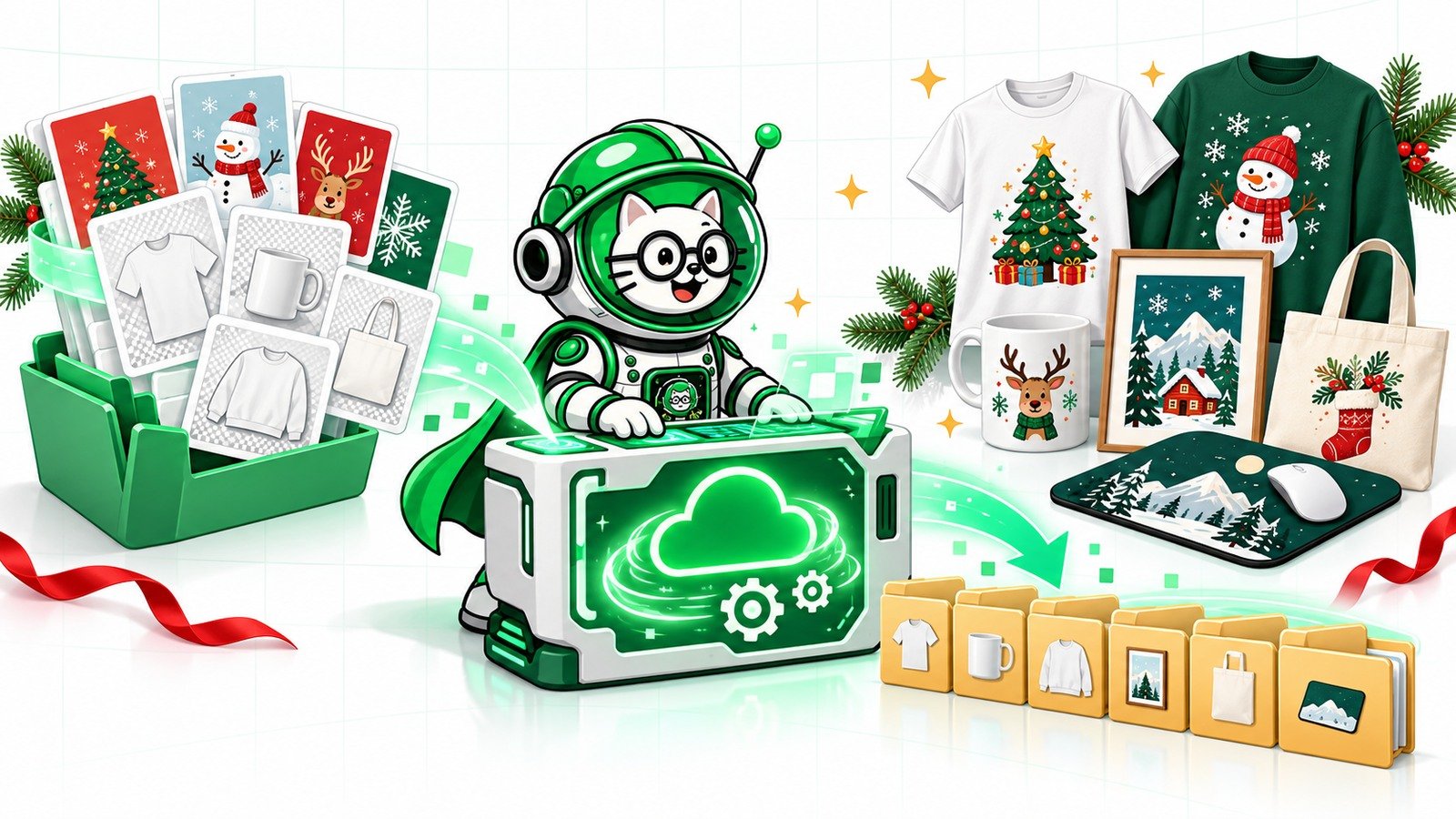
Holiday sales create a production problem before they create a sales opportunity. Sellers need seasonal designs, consistent mockups, correct marketplace sizes, organized folders and enough time to review every listing before shoppers arrive.
The solution is not to make mockups faster at the last minute. Build a repeatable holiday production system: approve the designs, choose a small seasonal PSD template set, test one product, render supported batches with PodBulk Vortex, then use Workflow to prepare upload-ready folders.
The holiday batch plan
- Choose the products and launch deadline.
- Freeze the design set before mass production.
- Use a purposeful hero, lifestyle and detail mockup set.
- Test one design across every PSD.
- Render supported batches with Vortex.
- Use Workflow for resize, rename, watermark and save steps.
- Review samples before uploading to Etsy or Shopify.
Start with the launch calendar, not the mockup tool
Work backward from the day products need to be visible. Leave time for design review, mockup quality control, listing copy, platform uploads and corrections. If physical products require production and shipping, the customer-facing deadline may be much earlier than the holiday itself.
Create three dates: design lock, mockup completion and listing publication. Automation helps only when the inputs stop changing long enough to run a stable batch.
Choose a small holiday mockup system
Seasonal merchandising should feel intentional. Etsy's Seller Handbook recommends clear, well-lit photography and simple seasonal staging that helps shoppers imagine the product as part of a holiday experience. That does not mean every image needs snow, ribbons and decorations.
Use a clean hero image for recognition, one seasonal lifestyle scene for context, and one detail or scale image. Add more only when they answer a buyer question.
Organize designs before rendering
Separate approved designs from drafts. Use clear names such as winter-mountain-v3-final.png and group designs by product type or collection. Do not mix transparent source art, marketplace JPEGs and client proofs in the same folder.
If the source artwork needs resizing or upscaling, finish that first. A weak edge or wrong aspect ratio repeated across 300 mockups becomes a large cleanup job.
Prepare PSD templates for automation
Each PSD should have a clear placement strategy. Auto detect works when there is one unambiguous Smart Object and prefers a layer named podmock. Focus targets one exact, case-sensitive Smart Object name. multiFocus fills every Smart Object whose name begins with the same prefix ending in an underscore, such as mock_.
Use multiFocus for a scene containing several matching frames, mugs or shirts. Use Focus when a PSD includes several Smart Objects but only one should change.
Run one complete holiday product first
Take one approved design through every selected template and every post-processing step. Check the full-size result and the marketplace-size result. Confirm the artwork is centred, shadows still look natural, seasonal props do not cover the design and the hero crop works as a thumbnail.
Only after that test passes should you render the rest of the collection.
Where PodBulk Vortex fits
Vortex is PodBulk's Premium cloud rendering route for supported PSD templates. Saved PSD profiles help repeat a tested template set without rebuilding targeting choices for every batch. That makes it useful when a seasonal launch contains many designs across the same hero and lifestyle scenes.
For strongly curved or bent Smart Objects, test Complex instead. The engine choice should follow the PSD structure, not the deadline.
Use Workflow after the render
Holiday production usually needs more than mockups. PodBulk Workflow can connect repeated steps such as resizing, renaming, watermarking and organized saving. A recipe can create a marketplace folder, a high-resolution master folder and a proof folder from the same approved batch.
Etsy image preparation
Etsy currently recommends listing images at least 2000 pixels wide and says the first photo should be horizontal or square so the centre focal point works in cropped thumbnail views. It also recommends using the same shape for listing photos to create a cohesive browsing experience.
Use those requirements as a final output check. Preview the thumbnail inside Etsy instead of assuming the full image will crop perfectly.
Shopify image preparation
For Shopify, keep the featured images consistent across collection pages. Use the same aspect ratio, similar visual scale and predictable background treatment. Retain a high-quality master and create store outputs from that master instead of repeatedly compressing previous exports.
For a complete process, follow the Shopify product mockups in bulk guide.
Example: 40 designs across five scenes
Forty designs rendered across five PSD scenes create 200 mockups. A safe production order is:
- Approve and freeze 40 source designs.
- Test one design in all five PSDs.
- Save the targeting profile.
- Render the remaining designs with the appropriate engine.
- Create Etsy and Shopify sizes in Workflow.
- Rename by design, product, scene and size.
- Review random samples from the beginning, middle and end.
- Upload one complete listing and inspect it on mobile.
- Publish the remaining products only after the test listing passes.
Holiday quality-control checklist
- No draft artwork entered the production folder.
- The design is readable at thumbnail size.
- Seasonal props support rather than hide the product.
- Every hero image uses the same crop and visual scale.
- Transparent edges and print boundaries are clean.
- Proof watermarks do not appear in customer files.
- Filenames match the listing and product.
- Store dimensions and file sizes are correct.
- One live test listing was checked on desktop and mobile.
What not to automate
Do not automate the decision about whether an image is good. A human should review the first output, unusual designs and random samples. Do not use a seasonal scene that misrepresents the physical product, and do not imply that props are included when they are not.
Final answer
Holiday POD mockups become manageable when you plan the collection before rendering. Freeze the designs, keep the PSD set purposeful, test one product, use Vortex for supported cloud batches and use Workflow to create organized Etsy and Shopify outputs. Automation protects the schedule; quality control protects the store.
Start in the PodBulk mockup app, build the finishing steps in PodBulk Workflow, and use the PSD mockup quality checklist before publishing.
Sources
Marketplace references: Etsy holiday merchandising guidance, Etsy image requirements and best practices, and Shopify product media guidance.
Frequently asked questions
How early should I prepare holiday POD mockups?
Work backward from the listing publication date and leave time for design approval, rendering, quality control, copy and upload corrections.
Can Vortex render holiday PSD mockups in the cloud?
Premium users can use Vortex for supported PSD template batches after testing one complete product.
What image size does Etsy recommend?
Etsy currently recommends listing images at least 2000 pixels wide and suggests a horizontal or square first photo for cropped thumbnail views.
Should every mockup look heavily seasonal?
No. Keep the hero image clear and use seasonal styling only where it adds context without covering or misrepresenting the product.
Can Workflow prepare both Etsy and Shopify outputs?
Workflow can connect repeatable resize, rename, watermark and save actions so you can organize separate marketplace folders.
Stop making mockups one by one
PodBulk turns your PSD templates + designs into bulk, listing-ready mockups right in your browser — no Photoshop, no install.