
How to Make Shopify Product Mockups in Bulk From PSD Templates
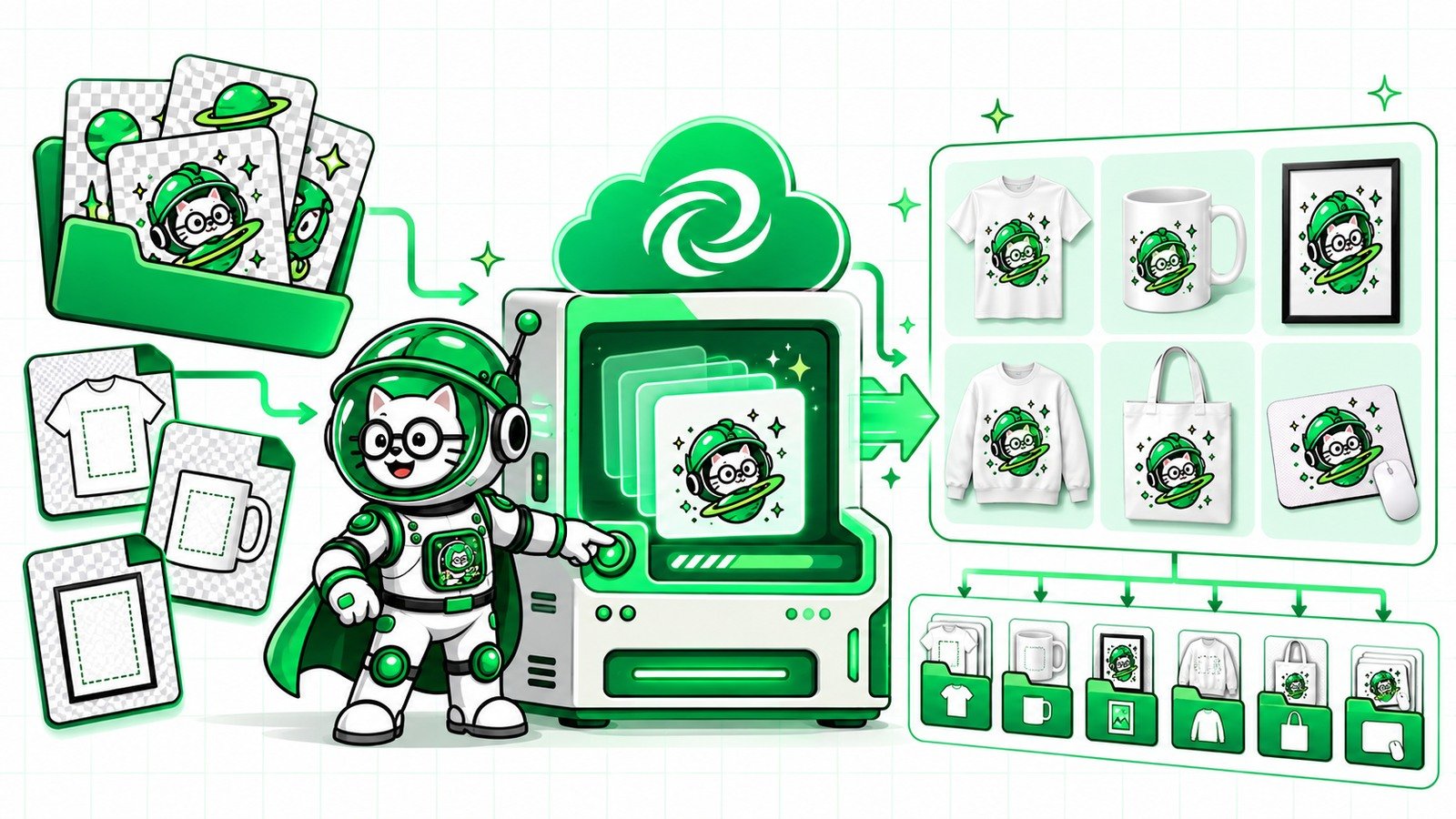
If your Shopify catalogue has dozens or hundreds of designs, making every product mockup manually becomes a production bottleneck. The practical solution is to build a repeatable PSD template system, render supported batches with PodBulk Vortex, and organize the outputs so each product receives a consistent image set.
This guide focuses on the work before you upload: choosing the scenes, targeting the correct Smart Objects, naming outputs, preparing Shopify-friendly sizes and checking quality. PodBulk does not replace Shopify; it prepares the product media that your store needs.
The short version
- Choose a consistent set of PSD mockup templates for each product type.
- Use Focus for one exact Smart Object or multiFocus for several matching placements.
- Use Vortex for supported Premium cloud PSD batches.
- Use Workflow for resize, rename, watermark and organized saving.
- Make the first image clear enough to work on collection pages.
- Test one complete product before rendering the full catalogue.
What Shopify product mockups need to do
A mockup is not only decoration. It should help a shopper understand the product. Your first image needs to communicate the item quickly in a collection grid. Supporting images can show scale, texture, placement, lifestyle context and alternate views.
Shopify supports product images alongside other media types. Its documentation notes that the first product media item becomes the featured image used in places such as collection pages, the cart and the homepage. That makes consistency especially important: the hero images across a collection should feel like one store.
Step 1: define one image set per product type
Do not start by rendering every PSD you own. Decide what each image contributes. A shirt might use a clean front hero, a lifestyle scene, a close-up and a folded view. A mug might use a clean angle, an in-hand scene and a detail. A poster might use a room scene, a straight-on frame and a close-up.
A smaller purposeful set is easier to keep consistent than ten nearly identical scenes.
Step 2: prepare the source designs
Use clean transparent PNG files when the artwork needs transparency. Confirm the colour space, edges and aspect ratio before automation. If a source needs upscaling, do it before the mockup stage and inspect the result at full size. One defect in the source can appear across the entire catalogue.
Step 3: organize PSD templates by product
Create predictable folders such as shirts/hero, shirts/lifestyle, mugs/hero and posters/room. Keep retired or experimental templates away from production folders. Stable templates make it easier to repeat the same collection style later.
See the detailed guide to organizing PSD mockup folders before a batch.
Step 4: target the right Smart Object
Different PSDs require different targeting:
- Auto detect works when the template has one unambiguous Smart Object. PodBulk also prefers a layer literally named
podmock. - Focus targets one exact, case-sensitive layer name. Use it when the PSD contains several Smart Objects but only one should receive the design.
- multiFocus targets every Smart Object beginning with a shared prefix ending in an underscore, such as
mock_. Use it when one scene contains several placements for the same design.
Smart Objects inside layer folders are searched automatically. Hidden matching Smart Objects still count, which is useful for structured templates that keep placeholders hidden.
Step 5: render supported batches with Vortex
PodBulk Vortex is the Premium cloud PSD rendering route for supported templates. It can keep the heavy batch away from the seller's local computer, and saved PSD profiles make repeat template sets faster to reuse. For strongly curved or bent Smart Objects, test Complex instead.
Always render one design through the complete template set before launching a large Vortex batch. Automation makes a correct process faster, but it also makes a wrong configuration repeat faster.
Step 6: choose Shopify-friendly output sizes
Shopify's current help documentation says product and collection images can be up to 5000 × 5000 pixels or 25 megapixels and must be under 20 MB. It also says square product images commonly display well at 2048 × 2048 pixels. Treat those as platform guidance, then check how your actual theme crops collection and product images.
Keep a high-quality master and create the store size from that master. Shopify optimizes images for storefront delivery, so the goal is a clean source with the correct aspect ratio—not repeatedly compressing the same file.
Step 7: name files for humans
Use a filename pattern that stays understandable after upload. For example:
moon-cat-shirt-hero-front.jpgmoon-cat-shirt-lifestyle-studio.jpgmoon-cat-shirt-detail-print.jpg
Useful filenames reduce mistakes when several products are open in the Shopify admin and help your team identify the correct featured image.
Step 8: use Workflow for the post-render steps
Mockup rendering is only one part of the job. PodBulk Workflow can connect repeated resize, rename, watermark, split and save actions. A useful recipe can turn a Vortex result into a high-quality master folder, a Shopify upload folder and a watermarked proof folder without bouncing through unrelated tools.
Example batch: 50 designs × 4 scenes
Fifty shirt designs across four purposeful PSD scenes produce 200 mockups. The reliable approach is:
- Test one design in all four PSDs.
- Confirm the right Smart Object changes.
- Check texture, lighting, perspective and clipping.
- Confirm the hero image crop in your Shopify theme.
- Save the PSD profile and output recipe.
- Run the remaining 49 designs.
- Review samples from the beginning, middle and end of the batch.
- Upload each organized set to the matching Shopify product.
How many mockups should each Shopify product have?
There is no useful universal number. Use enough images to answer the buyer's questions without repeating the same information. The hero image identifies the product. Supporting images should add evidence: scale, alternate view, detail, material or real-world context.
Shopify permits many media items per product, but the limit is not a target. More images create more quality-control and ordering work. A focused set is usually easier for both the seller and the shopper.
Quality-control checklist
- The design is centred and not accidentally mirrored.
- Transparent edges are clean.
- The design follows the intended perspective.
- Texture, highlights and shadows still look natural.
- All hero images share the same aspect ratio and visual scale.
- The first image is the correct featured image.
- Files remain below Shopify's upload limits.
- Filenames match the product and scene.
- No proof watermark appears in the customer-facing file.
Use the full PSD mockup quality checklist before uploading a large collection.
Common mistakes
- Using a different hero style for every design.
- Running the whole catalogue before testing one product.
- Choosing Auto detect for an ambiguous multi-Smart-Object PSD.
- Upscaling after repeated lossy exports.
- Mixing Shopify files, proofs and masters in one folder.
- Uploading images in an order that makes a detail shot the featured image.
Final answer
To make Shopify product mockups in bulk, build a small consistent PSD template set, target Smart Objects deliberately, test one full product, render supported batches with Vortex and use Workflow to prepare organized store-ready files. The value is not just speed; it is a catalogue that looks consistent and is easier to manage.
Start in the PodBulk mockup app, build the post-render steps in PodBulk Workflow, and read how to turn one design into a complete product-image set.
Sources
Shopify platform references: product media, product-media types and image limits, adding and ordering product media, and online-store image guidance.
Frequently asked questions
Can I make Shopify product mockups in bulk from my own PSD templates?
Yes. PodBulk can use your PSD Smart Object templates to produce repeated product scenes from many designs.
What image size should I use for Shopify product images?
Shopify says square product images commonly display well at 2048 × 2048 pixels. Confirm the crop in your own theme and retain a higher-quality master.
What is the first product image in Shopify?
The first media item is the featured or main item and can appear on collection pages, the cart, checkout and homepage.
Can Vortex render the PSD mockups in the cloud?
Premium users can use Vortex for supported cloud PSD batches. Test one complete product before running the full catalogue.
When should I use Focus or multiFocus?
Use Focus for one exact Smart Object name. Use multiFocus when the same design should fill every Smart Object sharing a prefix such as mock_.
Stop making mockups one by one
PodBulk turns your PSD templates + designs into bulk, listing-ready mockups right in your browser — no Photoshop, no install.