
How to Turn One Design Into a Complete Product Image Set With PodBulk
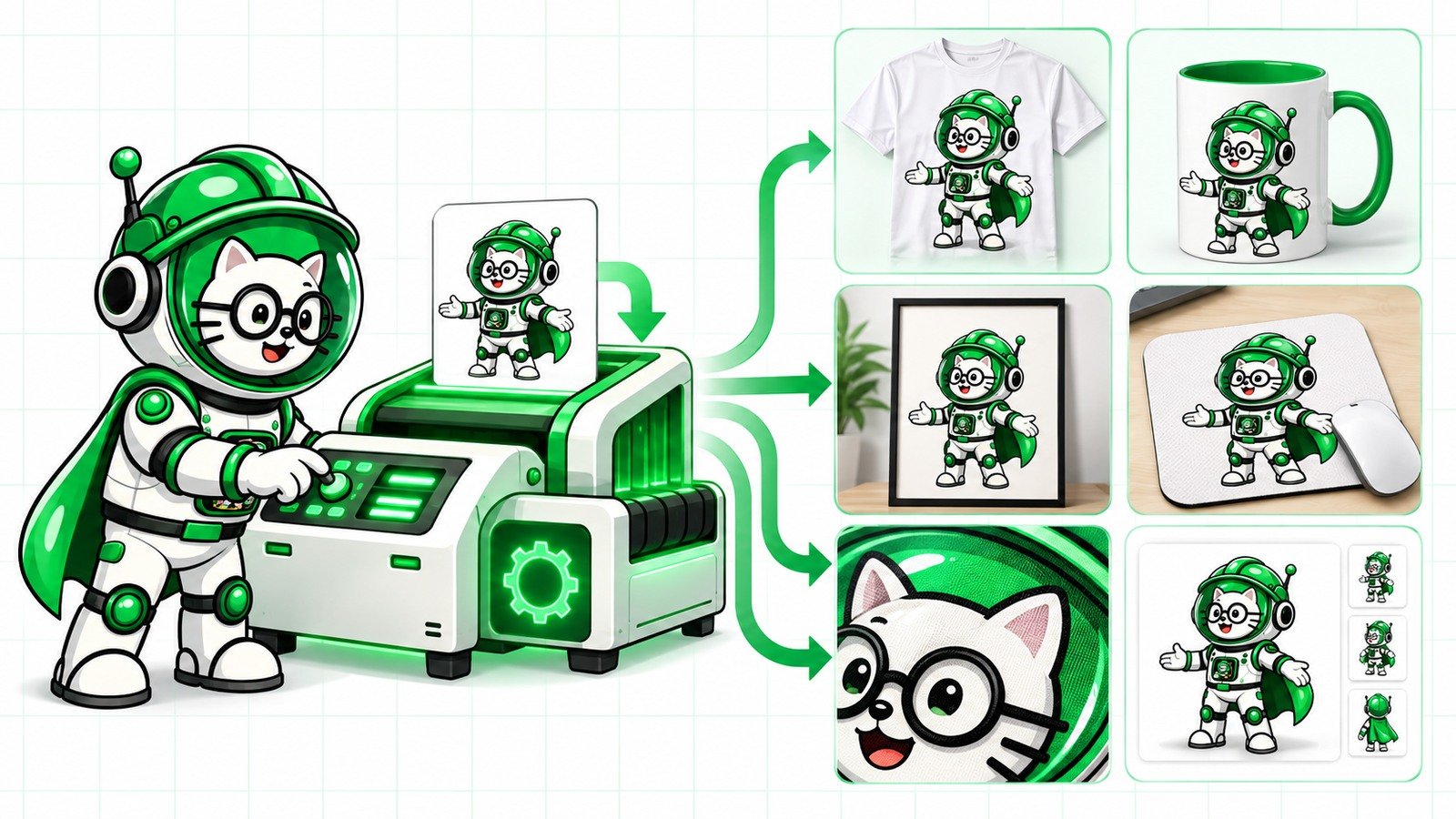
One finished design should not create an afternoon of repetitive image work. With PodBulk, you can turn that design into a complete product image set: multiple PSD mockup scenes, listing-ready sizes, close-up images, renamed files and organized folders.
The important idea is not “make one mockup faster.” It is to build a reusable production system. Your design goes in once, your templates and output rules stay consistent, and the batch produces the image set you need for Etsy, Shopify, print-on-demand catalogues or client delivery.
The short version
- Use your own PSD Smart Object templates for branded product scenes.
- Use Focus when one exact Smart Object should change.
- Use multiFocus when the same design must fill several matching placements.
- Use Vortex for fast cloud rendering of supported PSD mockups.
- Use Workflow to connect mockup, resize, upscale, rename, watermark and save steps.
- Inspect a small sample before running the complete catalogue.
What is a complete product image set?
A complete image set is the group of images needed to explain and sell one product. It may include a hero mockup, a lifestyle scene, a close-up, alternate colours, a sizing or detail view, and consistent marketplace thumbnails. The exact set depends on the product, but consistency matters more than the number of images.
For example, one T-shirt design might need a front shirt mockup, a folded-shirt scene, a model scene, a close-up print detail and a square listing thumbnail. The same artwork might also appear on a mug, poster and mouse pad. Creating each file manually multiplies the work.
Why the manual method breaks at scale
Manual Smart Object replacement works for a few images. At 50 designs and six templates, however, you are managing 300 outputs before resizing, naming or organizing anything. The work becomes vulnerable to wrong layers, missed exports, inconsistent filenames and designs placed in the wrong folder.
Automation is valuable because it makes the process repeatable. A repeatable process is easier to check, easier to delegate and easier to run again when a marketplace needs another size.
Step 1: prepare the design once
Start with a clean source file. Remove unwanted transparent pixels, confirm the aspect ratio, and decide whether the artwork needs upscaling. Keep the master separate from marketplace exports. A good source prevents the same defect from appearing in every mockup.
Step 2: choose a consistent PSD template set
Select templates that play different roles instead of collecting random scenes. One should be the clear hero image. Another can show scale or context. A third can show detail. For a multi-product shop, group templates by product type so shirts do not mix with posters or mugs.
If your folders are messy, use the guide to organize PSD mockup folders before a batch.
Step 3: tell PodBulk which Smart Object to fill
PodBulk supports several targeting methods for real PSD structures:
- Auto detect: best when a template has one unambiguous Smart Object. PodBulk also prefers a layer literally named
podmock. - Focus: enter one exact, case-sensitive Smart Object layer name when only that placement should change.
- multiFocus: enter a shared name prefix ending in an underscore, such as
mock_, to place the same design into every matching Smart Object.
Focus prevents the wrong layer from changing in a complex file. multiFocus is useful for scenes with several frames, shirts, cups or other placements that should all receive the same artwork. Smart Objects inside folders are found automatically, and hidden matching layers still count.
Step 4: use Vortex for the mockup batch
Vortex is PodBulk's cloud PSD mockup engine for Premium users. It is designed for fast browser-based batch production with supported templates. Saved PSD profiles can make repeated template sets faster to reuse because the targeting and template choices do not need to be rebuilt from scratch every time.
If a template uses a strongly curved or bent Smart Object that needs special handling, use the appropriate Complex workflow and test the result. No automation should replace visual inspection of the first output.
Step 5: connect the post-mockup work
Mockup creation is often only the middle of the job. PodBulk Workflow can connect repeated actions around it, including resize, upscale, rename, watermark, split and save steps. That means the result can be closer to an upload-ready product folder instead of a pile of unnamed renders.
Read the full guide to the upload, resize, upscale and mockup Workflow solution.
Example: one design, six product images
- Upload the final transparent PNG design.
- Choose the saved T-shirt template profile.
- Use Focus for the exact shirt artwork layer.
- Render the hero, lifestyle and folded-shirt PSDs with Vortex.
- Create a close-up crop and a square marketplace size.
- Rename outputs with the design name and scene type.
- Save the complete set into one organized product folder.
Repeat the same recipe for every design. The images change; the production logic stays consistent.
Example: fill several placements in one PSD
Imagine a gallery-wall PSD containing mock_1, mock_2, mock_7 and mock_20. With multiFocus set to mock_, PodBulk can place the same design into all matching Smart Objects in one pass. The numbers do not need to be sequential.
This is useful for poster walls, sets of mugs, flat lays and multi-shirt scenes. It also avoids the dangerous shortcut of guessing which Smart Object the user intended.
How to name the output set
Use predictable names that remain useful outside PodBulk. A simple pattern is design-product-scene-size. Examples: moon-cat-shirt-hero-square.jpg and moon-cat-mug-lifestyle-2000.jpg. The name explains the design, product, scene and output without opening the file.
Quality control before the full run
- Render one design through every chosen template.
- Zoom in and check edges, transparency, shadows and perspective.
- Confirm the correct Smart Object changed.
- Check that lighting and texture layers still look natural.
- Open the final marketplace size, not only the large master.
- Confirm filenames and folders are correct.
- Only then run the remaining designs.
The PSD mockup quality checklist can help you catch errors before uploading a large batch.
How this helps Etsy and POD sellers grow
A faster product-image system does not guarantee sales, but it creates more room for the work that can improve sales: better products, stronger titles, testing, customer service and new collections. It also reduces the burnout caused by repeating the same file operations late into the day.
When manual editing still makes sense
Use manual editing for one-off art direction, unusual retouching or a template that needs individual judgement. Use automation for the repeated majority. The best workflow is not “automate everything”; it is “automate the predictable work and review the important output.”
Build the storefront, then automate the mockups
A print-on-demand business still needs a clear place for customers to discover products and buy. If you are launching in Ottawa or elsewhere in Ontario, you can build your selling website with Ontario Webs, then use PodBulk to automate the repeated mockup work behind the catalogue.
The approach is simple: the website presents the brand, products, trust signals and ordering path; PodBulk turns your designs and PSD templates into organized mockup batches. Instead of hiring someone to replace Smart Objects and export the same scenes one by one, sellers can automate the predictable work and spend their time on designs, listings and customers.
Automation still needs a quality check, but it changes the economics of launching a catalogue. You pay for a useful storefront and a repeatable production system—not hours of avoidable manual mockup editing.
Final answer
To turn one design into a complete product image set, prepare a clean source, choose a purposeful PSD template set, target Smart Objects with Auto detect, Focus or multiFocus, render supported batches with Vortex, and connect the remaining production steps in Workflow. Test one sample, then scale.
Start with the PodBulk mockup app or build a reusable process in PodBulk Workflow. For the engine details, read why PodBulk Vortex is a game changer.
Frequently asked questions
Can PodBulk turn one design into multiple mockups?
Yes. You can run one design through multiple PSD templates and organize the resulting scenes as one product image set.
What is the difference between Focus and multiFocus?
Focus targets one exact, case-sensitive Smart Object name. multiFocus targets every Smart Object whose name begins with the prefix you provide, including the required trailing underscore.
Where does Vortex fit in the workflow?
Vortex is PodBulk's cloud PSD mockup engine for Premium users. It can render supported template batches without making the local computer do all of the work.
Should I inspect the output before a large batch?
Yes. Always test one design across every selected template, inspect the full-size and marketplace-size files, then run the full batch.
Can Workflow prepare files after the mockups are made?
Workflow can connect repeated actions such as resize, upscale, rename, watermark, split and save so the result is closer to an upload-ready folder.
Stop making mockups one by one
PodBulk turns your PSD templates + designs into bulk, listing-ready mockups right in your browser — no Photoshop, no install.