
I Bought a Photoshop Mockup Script and It Does Not Work—Here Is Why
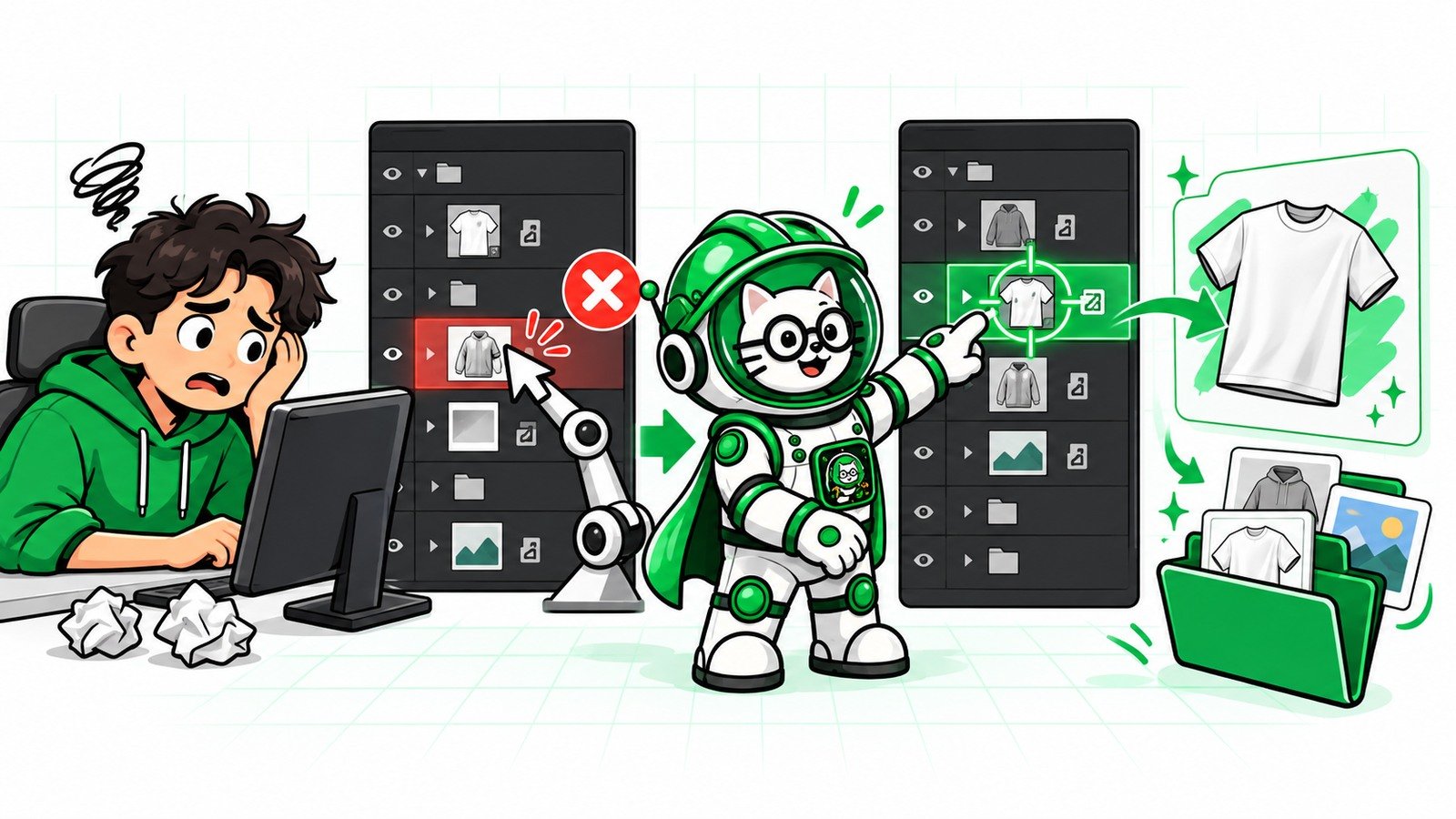
You bought a Photoshop mockup script, followed the instructions, and it still replaced the wrong layer—or nothing happened at all. The script may not be broken. It may simply have no reliable way to identify which Smart Object in your PSD is the intended design placeholder.
A script executes rules written by its developer. It does not look at a complex PSD and understand the scene like a designer. If its rule says “replace the active layer,” “use the first Smart Object,” or “find a layer called Design,” your template must match that assumption exactly.
PodBulk approaches this problem with explicit targeting. Auto detect handles a genuinely unambiguous PSD. Focus lets you provide one exact Smart Object name. multiFocus deliberately targets a family of names. The objective is not to claim that every script is bad; it is to stop an unsuitable generic script from silently choosing the wrong layer.
Why the script probably failed
- The script expected the Smart Object to have a particular name.
- It acted on whichever layer was selected.
- It chose the first Smart Object in the layer stack.
- Your target is nested inside one or more groups.
- The PSD contains several Smart Objects and the script cannot infer intent.
- The object is linked, duplicated, hidden or structured differently from the script author's test file.
- The script was written for a different Photoshop version or permission model.
A Photoshop script follows instructions; it does not understand your mockup
Photoshop provides scripting and plugin APIs that can inspect documents, read layer properties and run actions. Adobe's UXP documentation shows that a command needs a target. If a target is omitted, a command often operates on the active object in the interface. A developer can also target by an internal identifier, index, name or other properties—but the developer must build and test that logic.
That distinction matters. A carefully engineered script made specifically for one controlled PSD can work very well. A generic marketplace script has to guess how thousands of unrelated templates are constructed.
The seven targeting assumptions that break most generic workflows
1. “Use the currently selected layer”
This works only if the correct Smart Object is selected before every run. If a group, text layer, adjustment layer or different Smart Object is active, the command targets the wrong object or fails.
2. “Use the first Smart Object”
Layer order is not meaning. The first Smart Object may be a background texture, logo, shadow source, label, screen reflection or decorative prop. Adding a layer can also change index-based targeting.
3. “Find a layer with this hard-coded name”
A script written for Your Design Here will not automatically recognize Mock, Artwork, Place design or mock_1. Capitalization, spaces and suffixes may matter.
4. “Search only the top level”
Professional templates frequently organize objects inside groups such as Product, Artwork, Shadows and Highlights. A shallow search never reaches a target nested several folders deep.
5. “There will be only one Smart Object”
A realistic scene can contain a design placeholder plus texture, label, background and reflection objects. A wall gallery can contain many frames. When several candidates exist, software cannot safely know which one represents your intent unless it has a rule or asks you.
6. “Every duplicate is independent”
Photoshop can create duplicate Smart Objects that share source content or independent copies created with New Smart Object via Copy. A replacement may update several instances—or only one—depending on how the template was built.
7. “Every Smart Object is embedded and available”
Linked Smart Objects depend on external source files. If the link is unavailable on another computer, the script may not be able to update the content as expected. Embedded objects travel inside the PSD and are usually more portable.
Why the wrong output can look convincing
The most dangerous failure is not a red error. It is a finished JPEG that looks reasonable but contains the design in the wrong layer. The script completes, saves the file and moves to the next design. By the end of the batch, dozens or hundreds of outputs can be wrong in the same subtle way.
This is why ambiguity should stop the run. A tool that refuses to guess can save more time than one that finishes quickly with the wrong result.
PodBulk Auto detect: use it only when the PSD is unambiguous
Auto detect scans the PSD for Smart Objects. When it finds exactly one, it can use that target. It also prefers a layer literally named podmock. If no Smart Object exists, it stops. If several exist, it stops and tells you to choose Focus or multiFocus.
That behaviour is deliberate. “First Smart Object” is not a safe substitute for “the Smart Object the seller intended.”
PodBulk Focus: name the exact layer you want
Focus is the most direct solution when your PSD contains several Smart Objects but only one should receive the design. Open the Layers panel, identify the intended Smart Object name and enter that exact name in PodBulk.
For example, if the target is named Mock, enter Mock. The match is case-sensitive, so mock is different. If that exact target does not exist, PodBulk stops and lists the Smart Objects it found instead of falling back to a different layer.
This gives you something a generic script often lacks: an explicit contract between the PSD and the automation tool.
PodBulk multiFocus: fill several intentional targets
Some scenes need the same artwork in multiple placements: a gallery wall, several mugs, a row of shirts or a collection of frames. Rename the intended Smart Objects with a shared prefix such as mock_1, mock_2 and mock_37. Enter mock_ in multiFocus.
PodBulk finds every Smart Object whose name begins with that prefix and places the same design into them in one pass. The underscore is required, and the numbers do not need to be sequential.
Hidden and nested Smart Objects still count
A target may be inside a folder or have visibility turned off. PodBulk searches inside layer groups automatically and includes hidden Smart Objects. That is useful for templates that keep placeholder layers hidden while effects and composed layers remain visible.
It also means you should use distinctive names. A hidden test object called Mock can conflict with a visible production target using the same name.
What Focus fixes—and what it cannot fix
Focus solves target selection. It does not repair every PSD problem. It cannot make a pixel layer into a Smart Object, recover a missing linked asset, invent a low-resolution design, or guarantee that an unusual unsupported transform will render perfectly.
If Focus selects the correct layer but the design is invisible, inspect masks, clipping groups, opacity, blend modes, effects and nested content. If the design looks blurry, use the blurry Smart Object replacement guide. For bent or strongly warped placements, test PodBulk Complex. For supported cloud-rendered PSDs, Vortex can be the better route.
A five-minute test before running the batch
- Duplicate the PSD and preserve the original.
- Open the Layers panel and identify every Smart Object.
- Rename the intended target clearly if you control the template.
- Use a bright proof design with obvious orientation.
- Select Auto detect only when there is one candidate; otherwise use Focus.
- Check the full-size output for placement, crop, perspective and effects.
- Only then add the rest of the designs.
Should you ask the script seller for help?
Yes. Provide the Photoshop version, operating system, exact error, a screenshot of the Layers panel and a sample PSD you are allowed to share. Ask what naming convention, selected layer and Smart Object type the script expects.
If the seller can explain those requirements, you may be able to adjust the PSD. If the tool claims to support arbitrary templates but cannot identify nested or multiple Smart Objects, it may simply be the wrong automation approach for your library.
When a custom Photoshop script is still the right choice
A custom script can be excellent when every PSD follows a controlled schema and you need Photoshop-specific operations beyond replacement. It may be appropriate for a studio with engineering support, fixed naming rules and a stable Adobe environment.
The tradeoff is ownership: someone must maintain the code when Photoshop changes, templates change, permissions fail or a designer adds a new layer structure. The code price is only part of the workflow cost.
Why PodBulk is easier for sellers
PodBulk is designed around the repeated mockup job. You choose designs, PSD templates and an explicit targeting mode. You do not need to install Photoshop, paste code into a scripts folder or debug an action descriptor.
The current paid plan is listed at $7.99 per month and supports up to 20 PSDs and 50 designs per batch, while free access lets you test the workflow first. Check the current PodBulk pricing page because plan details can change.
Files can be handled through the browser workflow, batches download locally in organized outputs, and Workflow can continue with resize, rename, watermark and save steps.
Photoshop script versus PodBulk Focus
| Question | Generic script | PodBulk Focus |
|---|---|---|
| How is the layer chosen? | Depends on the code: active layer, order, name or ID | You provide one exact Smart Object name |
| What happens on a wrong name? | May fail, fall back or target something else | Stops and lists available Smart Objects |
| Nested groups | Only if the developer implemented recursive search | Searched automatically |
| Several intentional targets | Requires custom logic | Use multiFocus with a shared prefix |
| Photoshop required | Usually yes | No Photoshop installation required |
| Maintenance | Owner or developer troubleshoots compatibility | PodBulk maintains the workflow |
Final answer
If the Photoshop script you bought does not work, do not immediately assume you made a mistake. Find out how the script chooses its Smart Object. If it relies on the active layer, first object, a hard-coded name or a shallow layer search, it may not match your PSD.
Use PodBulk Auto detect for one unambiguous Smart Object. Use Focus when you know the exact target name. Use multiFocus when several intentionally named targets should receive the same design. The key is not more guessing—it is making the target explicit before producing the batch.
Try your PSD in PodBulk, or compare the larger workflows in Photoshop mockup scripts versus PodBulk.
Frequently asked questions
Why does my Photoshop script replace the wrong Smart Object?
It may be targeting the active layer, the first Smart Object, a layer index or a hard-coded name that does not match your template.
Can a Photoshop script find the correct Smart Object automatically?
It can search using rules written by the developer, but it cannot infer creative intent when several valid Smart Objects exist. The script needs a reliable naming or selection rule.
What is PodBulk Focus?
Focus fills one Smart Object whose layer name exactly matches the case-sensitive name you enter. If the name is absent, PodBulk stops and lists the available Smart Objects.
What if I want to replace several Smart Objects?
Use multiFocus. Give the intended layers a shared prefix ending in an underscore, such as mock_1 and mock_2, then target mock_.
Does PodBulk require Photoshop?
No. PodBulk's mockup workflow runs through the browser and does not require a Photoshop installation.
Are all Photoshop scripts unreliable?
No. A well-built script can be reliable for the PSD structure it was designed and tested to handle. Problems arise when a generic script's assumptions do not match an unfamiliar template.
Sources
Adobe references: batchPlay targeting documentation, replace Smart Object contents, linked Smart Objects, and duplicate Smart Objects.
Frequently asked questions
Why does my Photoshop script replace the wrong Smart Object?
It may target the active layer, first Smart Object, a layer index or a hard-coded name that does not match the template.
Can a Photoshop script find the correct Smart Object automatically?
It can search using developer-defined rules, but it cannot infer creative intent when several valid targets exist.
What is PodBulk Focus?
Focus fills one Smart Object whose layer name exactly matches the case-sensitive name you enter.
What if I want to replace several Smart Objects?
Use multiFocus with a shared prefix ending in an underscore, such as mock_ for mock_1 and mock_2.
Does PodBulk require Photoshop?
No. PodBulk's mockup workflow runs through the browser without a Photoshop installation.
Are all Photoshop scripts unreliable?
No. A well-built script can be reliable for the PSD structure it was designed and tested to handle.
Stop making mockups one by one
PodBulk turns your PSD templates + designs into bulk, listing-ready mockups right in your browser — no Photoshop, no install.