
Why Is My PSD Mockup Blurry After Smart Object Replacement?
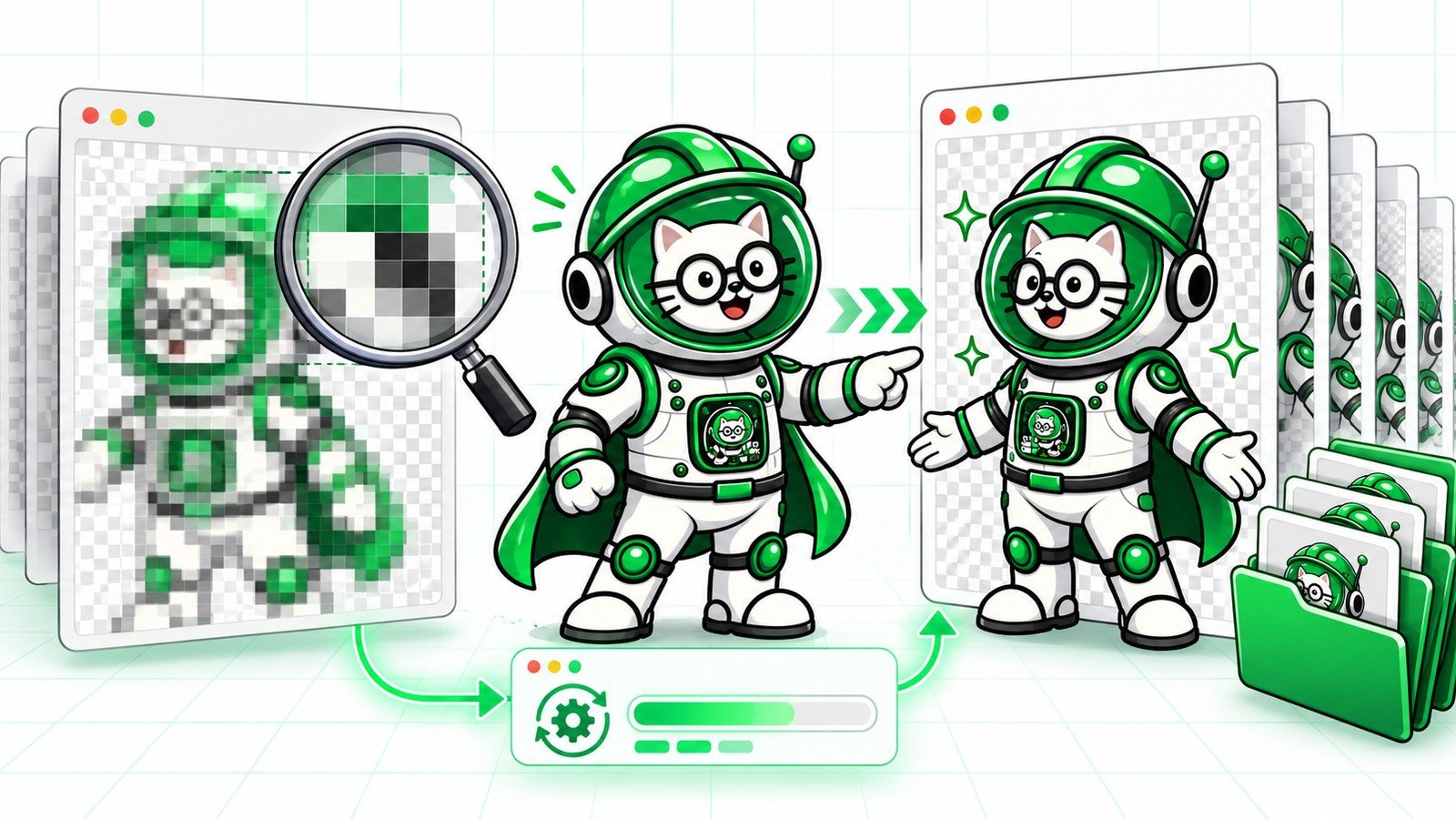
A Smart Object can preserve the pixels you give it, but it cannot invent detail that was never there. If a PSD mockup looks blurry after replacement, the cause is usually one of four things: the source design is too small, the embedded Smart Object canvas is larger than expected, the design is being enlarged too far, or the final export is being resized or compressed.
Before changing a whole batch, diagnose one file at 100% zoom. This guide separates source blur, template blur and export blur so you can fix the correct stage.
Fast diagnosis
- Open the original design at 100% and check its pixel dimensions.
- Open the PSD's embedded Smart Object and record its canvas size.
- Compare the source pixels with the space they must cover.
- Check whether the replacement is scaled above 100%.
- Inspect the composed mockup at 100%, not only a browser preview.
- Export once from a high-quality master.
- Test one result before launching the PodBulk batch.
First identify which kind of blur you have
1. The source design is blurry
Open the PNG, JPEG or other source file outside the mockup. View it at 100%. If edges and small details already look soft, no Smart Object workflow can restore the missing detail. Start from a larger export or the original vector or layered design.
2. The design becomes blurry inside the PSD
If the source looks sharp but the placed result is soft, compare the source dimensions with the embedded placeholder dimensions and the transform scale. A 1000-pixel design stretched to cover a 3000-pixel Smart Object canvas must be upsampled.
3. The PSD looks sharp but the exported mockup is blurry
Check the export dimensions, format and quality. A beautiful 5000-pixel composition can become soft if it is exported at a tiny size and then enlarged on a marketplace or website. Repeated JPEG saves can add compression artifacts around edges and text.
4. Only the preview looks blurry
Browser thumbnails, file explorers and marketplace previews often show resized versions. Download or open the actual output and inspect it at 100%. Do not diagnose production quality from a low-resolution thumbnail alone.
Pixel dimensions matter more than PPI for screen mockups
For Etsy, Shopify and most online listings, the width and height in pixels determine how much image information is available. Changing a file from 72 PPI to 300 PPI without adding pixels does not create more on-screen detail.
If a Smart Object canvas is 3000 × 3000 pixels, a 3000-pixel square design can fill it without enlargement. A 1000-pixel design must be enlarged three times. Photoshop can resample the file, but Adobe notes that upsampling cannot recreate lost detail and may reduce quality.
Check the embedded Smart Object canvas
Double-click the Smart Object thumbnail in Photoshop to open its contents. Note the canvas dimensions and aspect ratio. The visible placeholder on the outer mockup may look small while its embedded canvas is much larger.
Your artwork should ideally meet or exceed the pixel dimensions needed by that canvas after cropping. If the artwork has a different aspect ratio, decide whether it should fit inside the canvas, fill it with cropping, or be reformatted before batching.
Watch the effective scale
Smart Objects allow non-destructive transformations because Photoshop preserves the source content. That protects the original, but enlarging a small source still means there are not enough original pixels for fine detail.
In the template, inspect the transform values. If the placed design is regularly above 100%, export a larger source. If the template itself expects a very large source, document that minimum size beside the PSD so every future batch uses the correct input.
Avoid repeated resampling
Repeatedly resizing an output, saving it, reopening that smaller copy and enlarging it again compounds quality loss. Keep one high-resolution master. Create marketplace and social-media sizes from that master in a single finishing workflow.
PodBulk Workflow is useful here: a recipe can take the batch master, create named size variants and save them into organized folders without turning one compressed derivative into the source of the next derivative.
Choose a suitable source format
PNG is often a good input for transparent artwork, logos and designs with sharp edges. JPEG is useful for photographs, but it uses lossy compression. Adobe recommends choosing JPEG quality carefully and notes that repeated JPEG editing and saving can reduce quality.
For the PSD template itself, keep the editable PSD or PSB master. Adobe also notes that JPEG-linked or embedded content may involve compression, while PSD, TIFF and PSB are more suitable when retaining layered or high-quality source information matters.
Check whether softness is intentional
A good mockup template may use depth of field, surface texture, displacement, grain, fabric weave, reflections and lighting to make artwork look physically present. Those effects can soften a design on purpose. Compare the result with the untouched placeholder or the template author's sample before assuming the replacement failed.
For strongly warped or bent placements, choose the PodBulk Complex engine. For supported cloud-rendered templates, Vortex can process the saved PSD profile. The rendering route should match the template structure.
Smart Object targeting does not control resolution
PodBulk offers three targeting modes, and they decide which layer receives the design:
- Auto detect uses the only available Smart Object and prefers one named
podmock. - Focus targets one exact, case-sensitive Smart Object name.
- multiFocus fills every Smart Object whose name starts with a shared prefix ending in an underscore, such as
mock_.
These modes prevent the wrong layer from being filled. They do not add pixels to a small design. If every targeted placement is blurry, investigate the source resolution and embedded canvases.
Why one placement can be blurry and another sharp
A multiFocus PSD can contain several Smart Objects with different canvas sizes or transformations. The same source might be large enough for a small frame but too small for a large poster. Open each Smart Object family member once, record its dimensions and prepare the design for the largest required placement.
If the placements are meant to share exactly the same source and scale, standardize their embedded canvases while editing the template. Consistent PSD construction makes batch results easier to predict.
Check the export, not just the PSD
Export one full-size JPEG or PNG and confirm its final pixel dimensions. For JPEG, use enough quality for the artwork and avoid a chain of recompression. For transparency or crisp graphical edges, test PNG. Compare file size and visual quality at 100% rather than choosing the largest file automatically.
Then create the marketplace version from the full-size output. If an upload platform creates its own preview, compare the original upload with the platform-rendered image before changing the PSD.
A practical one-file test
- Choose the design that contains the smallest text or finest linework.
- Confirm its original pixel dimensions and inspect it at 100%.
- Open the largest target Smart Object and record its canvas dimensions.
- Resize or re-export the source from the original artwork if necessary.
- Run one PodBulk replacement using Auto detect, Focus or multiFocus as appropriate.
- Open the output at 100% and compare it with the source.
- Create one final marketplace-size export.
- Upload it privately or as a draft and inspect the platform preview.
- Only then render the remaining designs.
Batch quality checklist
- Source designs meet the largest placeholder's pixel needs.
- Aspect ratios match or have an intentional crop rule.
- The correct Smart Object names are targeted.
- No important element sits outside the safe design area.
- Effects and displacement look intentional.
- The full-size output is sharp at 100%.
- Marketplace derivatives come from the master, not another derivative.
- JPEG quality is high enough without unnecessary file weight.
- Random samples from the beginning, middle and end pass review.
What if the Smart Object does not update at all?
Blur and failed replacement are different problems. If the old design remains visible, the template may contain multiple Smart Objects, a linked asset, a case-sensitive name mismatch or a layer structure that needs a different engine. Use the Smart Object not updating guide.
Before a large production run, use the PSD mockup quality checklist. If volume is the main challenge, see how to generate 1,000 mockups from 50 designs.
Final answer
If a PSD mockup is blurry after Smart Object replacement, start with pixels: inspect the source, the embedded canvas, the transform scale and the exported dimensions. Keep a high-resolution master, avoid repeated resizing and compression, and test one demanding design before the batch. PodBulk can automate the replacement and finishing workflow, but a sharp batch still begins with correctly sized source artwork and a well-built PSD.
Open the PodBulk mockup app to test a PSD, then build consistent output steps in PodBulk Workflow.
Frequently asked questions
Why is my Smart Object blurry even though it is 300 PPI?
PPI alone does not guarantee on-screen detail. Check the actual pixel width and height. A small file marked 300 PPI can still be too small for a large embedded canvas.
Does converting a layer to a Smart Object improve its resolution?
No. It protects the source during non-destructive transformations, but it does not add real detail that is absent from the source.
Should I use PNG or JPEG for the replacement design?
Use PNG for transparency and crisp graphical edges. JPEG can work well for photos, but use an appropriate quality and avoid repeated saves.
Can multiFocus make one placement blurrier than another?
multiFocus sends the same design to matching Smart Objects. If their canvas sizes or transforms differ, the design may be enlarged more in one placement and appear softer.
Should I upscale every design before batching?
No. First compare the design with the largest required embedded canvas. Upscaling cannot truly restore missing detail; exporting again from the original vector or layered artwork is better when possible.
Can PodBulk fix a low-resolution source automatically?
PodBulk can resize or upscale within a workflow, but no tool can perfectly recreate details that were never present. Start from the best source and review a test output.
Sources
Adobe references: Smart Object overview, placing files as Smart Objects, embedded Smart Objects, image size and resampling, and export settings.
Frequently asked questions
Why is my Smart Object blurry even though it is 300 PPI?
PPI alone does not guarantee on-screen detail. Check the actual pixel width and height against the embedded Smart Object canvas.
Does converting a layer to a Smart Object improve resolution?
No. A Smart Object protects its source during transformations, but it cannot create missing source detail.
Should I use PNG or JPEG for mockup replacement?
PNG is useful for transparency and crisp graphical edges. JPEG works well for photos when saved at an appropriate quality without repeated recompression.
Can multiFocus make one placement blurrier than another?
The same design may be enlarged by different amounts when matching Smart Objects have different canvas sizes or transforms.
Should I upscale every design before batching?
No. Compare the source with the largest target canvas first. Re-exporting from original vector or layered artwork is preferable when possible.
Can PodBulk fix a low-resolution source automatically?
Workflow can resize or upscale, but no tool can perfectly restore detail that was never present. Start with the best available source and test one output.
Stop making mockups one by one
PodBulk turns your PSD templates + designs into bulk, listing-ready mockups right in your browser — no Photoshop, no install.