
How to Name Smart Object Layers for Reliable Bulk Mockup Automation
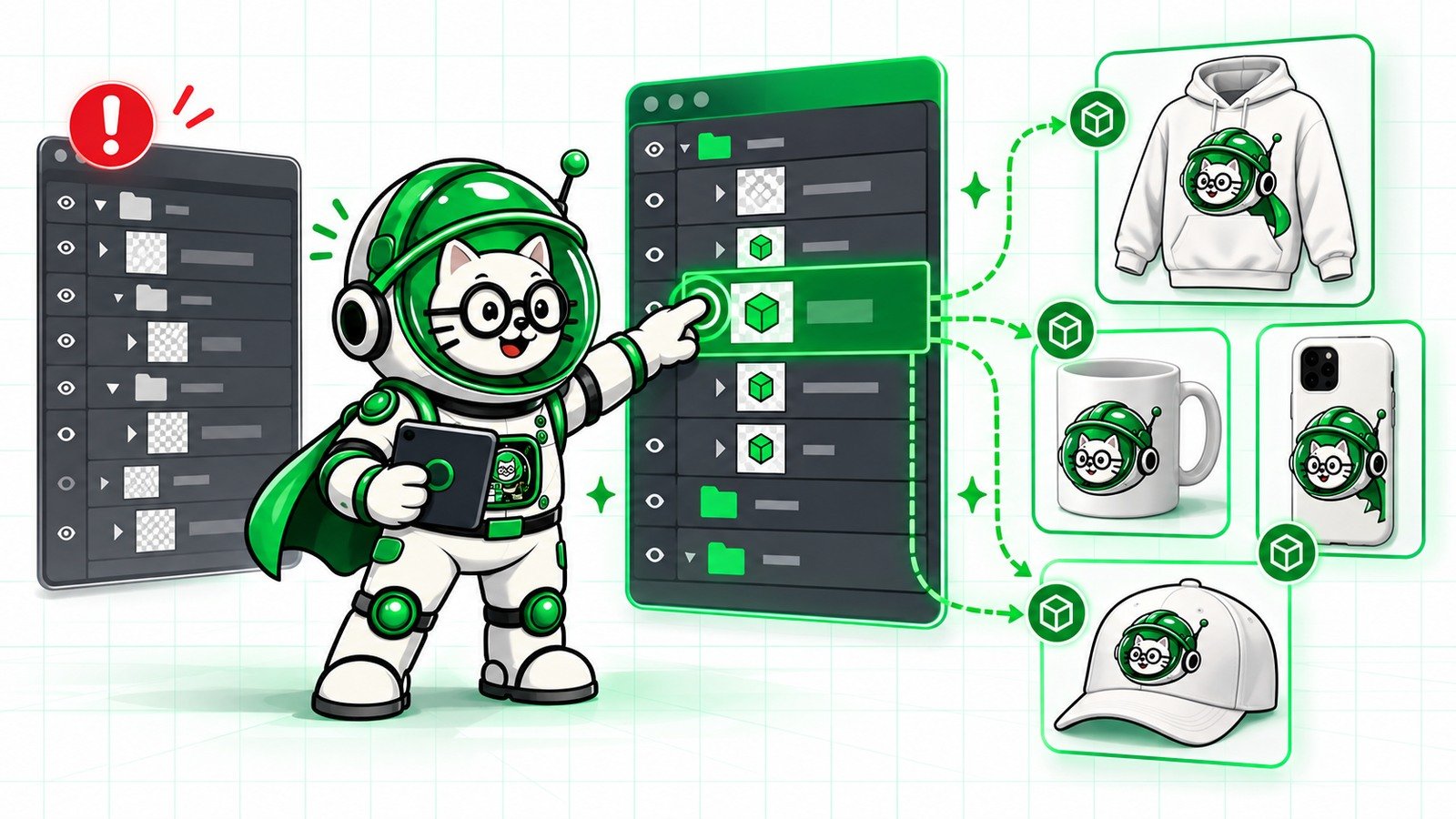
The fastest way to make a PSD automation-friendly is to give every intended Smart Object a deliberate name. Clear naming tells the tool whether it should fill one exact target, every target in a family, or the only unambiguous placeholder.
This small preparation step prevents the most expensive batch error: hundreds of finished files containing the design in the wrong object. Use this guide before running a new PSD through PodBulk Auto detect, Focus, multiFocus, Vortex or Complex.
The naming rules
- Use
podmockfor one obvious primary placement. - Use a unique exact name such as
Front_Printfor Focus. - Use a shared prefix ending in an underscore, such as
mock_, for multiFocus. - Do not give unrelated Smart Objects the same automation prefix.
- Remember that names are case-sensitive.
- Hidden and nested Smart Objects are still discovered.
- Test one high-contrast design before the full batch.
Why layer names matter
A PSD can contain many Smart Objects: the customer artwork, a logo label, texture maps, screen reflections, shadows, background art and nested components. All are technically Smart Objects, but they do not have the same purpose.
Automation cannot infer your creative intent from layer type alone. A clear name turns intent into a repeatable rule.
First audit every Smart Object
In Photoshop, open the Layers panel and use the Smart Object filter to isolate linked, embedded, missing and out-of-date Smart Objects. Adobe provides separate filter icons for these types, which makes it easier to see what the PSD actually contains.
For each object, ask:
- Should customer artwork replace this object?
- Should every design fill it, or only some products?
- Is it part of a multi-placement scene?
- Is it hidden but structurally required?
- Is it linked to an external file?
- Does it share source content with another instance?
Option 1: name one primary Smart Object podmock
For a simple PSD with one design placement, rename that Smart Object podmock. PodBulk Auto detect prefers this literal name. It makes the primary target obvious to both the tool and the next person who opens the file.
Do not use podmock on several unrelated layers. Auto detect is designed for one unambiguous target and should stop rather than guess when several candidates exist.
Option 2: use a unique exact name for Focus
Focus is best when the PSD contains several Smart Objects but only one should receive the current design. Choose a descriptive name such as:
Front_PrintMug_ArtworkPoster_MainPhone_ScreenLeft_Frame
Enter that exact name in PodBulk Focus. The match is case-sensitive, so Front_Print and front_print are different. If the name is missing, PodBulk stops and lists the Smart Objects found instead of silently falling back to a different layer.
Option 3: build a multiFocus family
Use multiFocus when the same design should appear in several placements in one scene. Give the targets a shared prefix followed by any useful suffix:
mock_1mock_2mock_largemock_right_frame
Enter mock_ in multiFocus. The trailing underscore is required. Numbers do not need to be sequential because matching is based on the beginning of the name, not a numeric range.
Use prefixes that describe purpose
mock_ is easy, but a large template library benefits from more descriptive families:
| Scene | Suggested names | multiFocus prefix |
|---|---|---|
| Gallery wall | frame_1, frame_2, frame_large | frame_ |
| Mug set | mug_left, mug_right, mug_box | mug_ |
| Apparel flat lay | shirt_top, shirt_folded, shirt_hanging | shirt_ |
| Poster bundle | poster_a, poster_b, poster_c | poster_ |
| Device scene | screen_phone, screen_tablet, screen_laptop | screen_ |
Choose one convention and document it. Do not mix Frame1, frame_2 and FRM-three unless they intentionally belong to different jobs.
Avoid these naming mistakes
- Duplicate exact names: two objects called
Mockmake one-name targeting ambiguous. - Generic names:
Layer 17 copy 4tells nobody what the object does. - Unrelated shared prefixes: a texture named
mock_texturewill join themock_family. - Invisible differences: trailing spaces can make names look identical while failing exact matching.
- Inconsistent capitalization:
Mock_1andmock_2do not share the same case-sensitive prefix. - Renaming only the folder: Focus targets the Smart Object layer name, not just the group that contains it.
Nested folders are searched automatically
You can keep a clean Photoshop structure such as Product > Artwork > Print > Front_Print. PodBulk searches inside groups at any depth, so there is no need to drag every target to the top level.
Folder names still help humans. Use groups for organization and exact Smart Object names for automation.
Hidden Smart Objects count
A Smart Object with its eye turned off is still found and can still be filled. This supports templates that preserve hidden placeholders or duplicated sources. It also means forgotten test objects can create unexpected matches.
Before saving the production PSD, search for all objects using the selected prefix, including hidden layers.
Understand shared and independent duplicates
Adobe distinguishes duplicate Smart Objects that remain connected from independent copies created with New Smart Object via Copy. Editing a connected instance can update the others, while an independent copy has separate source content.
Naming controls which layers PodBulk targets; it does not change how Photoshop instances share source data. Test duplicates deliberately. If several placements must show different artwork, make sure the objects are independent. If they must always match, a shared source may be useful.
Linked versus embedded Smart Objects
Linked Smart Objects reference an external file. They can reduce duplication and update across documents, but the PSD depends on that path being available. Adobe flags missing or out-of-date links in the Layers panel.
An embedded Smart Object stores its source inside the PSD, making the template more portable. For a template moving between computers or a browser workflow, embedding the intended placeholder can reduce missing-file surprises. Preserve an original before restructuring a purchased PSD.
Keep the design canvas consistent
Names solve target selection, not geometry. For multiFocus, compare the embedded canvases and aspect ratios. If frame_1 is square and frame_2 is panoramic, one design will need different cropping rules.
For predictable results, standardize the intended family or accept the crop differences during the one-design test. See the blurry Smart Object guide for pixel and scaling checks.
Create a PSD naming note
Store a short text file beside the master PSD or put a non-rendering instruction layer at the top:
- Target mode: Focus
- Target name:
Front_Print - Recommended design size: 3000 × 3000 px
- Engine: Vortex, Standard or Complex
- Expected outputs per design: one
- Last tested date and app version
This turns a mystery template into a reusable production asset.
How naming works with Vortex profiles
For supported PSDs, PodBulk Vortex can use a saved profile so the tested template and targeting decision are repeatable. Stable layer names matter: renaming the target after saving the profile can break that contract.
Finalize the PSD structure and names first, test the output, then save the production profile.
The one-design test
- Duplicate the original PSD.
- Filter and list every Smart Object.
- Rename only the intended automation targets.
- Choose Auto detect, Focus or multiFocus.
- Use a high-contrast proof design with obvious orientation.
- Inspect every placement at full size.
- Check masks, shadows, texture, perspective and crop.
- Close and reopen the PSD to identify missing linked content.
- Test a second design with a different aspect ratio.
- Only then run the full batch.
Recommended naming patterns
- One simple target:
podmock - One target among many:
Front_Print+ Focus - Same design in many placements:
mock_1,mock_2+ multiFocusmock_ - Several separate families:
frame_,mug_,shirt_, each processed intentionally
Final answer
A reliable bulk mockup starts with a PSD that communicates intent. Use podmock for one obvious placement, a unique exact name for Focus, and a shared prefix ending in an underscore for multiFocus. Audit hidden and nested objects, understand linked and duplicate behaviour, and prove the template with one demanding design before volume.
Open the PodBulk mockup app to test the PSD. If a generic script keeps selecting the wrong object, read why Photoshop scripts miss the intended Smart Object.
Frequently asked questions
What should I name one Smart Object for PodBulk?
Use podmock for a simple PSD with one primary placeholder, or use a descriptive exact name and enter it in Focus.
Are PodBulk Smart Object names case-sensitive?
Yes. Focus and multiFocus matching is case-sensitive, so Mock and mock are different.
Why does multiFocus require an underscore?
The trailing underscore makes the family prefix deliberate and reduces accidental matches with unrelated layer names.
Does PodBulk find Smart Objects inside folders?
Yes. Folder search is automatic at any nesting depth.
Are hidden Smart Objects included?
Yes. Hidden targets count, so audit old or test layers before running the batch.
Can two Smart Objects have the same exact name?
Photoshop may allow confusing duplicates, but unique names are safer for Focus. Use a deliberate prefix family for several intended targets.
Sources
Adobe references: filter the Layers panel by Smart Objects, duplicate embedded Smart Objects, create linked Smart Objects, and embed linked Smart Objects.
Frequently asked questions
What should I name one Smart Object for PodBulk?
Use podmock for a simple PSD with one primary placeholder, or a descriptive exact name with Focus.
Are PodBulk Smart Object names case-sensitive?
Yes. Focus and multiFocus matching is case-sensitive, so Mock and mock are different.
Why does multiFocus require an underscore?
The trailing underscore makes the prefix deliberate and reduces accidental matches.
Does PodBulk find Smart Objects inside folders?
Yes. Folder search is automatic at any nesting depth.
Are hidden Smart Objects included?
Yes. Hidden targets count, so audit old and test layers before batching.
Can two Smart Objects have the same exact name?
Photoshop may allow confusing duplicates, but unique names are safer for Focus. Use a deliberate prefix family for multiple targets.
Stop making mockups one by one
PodBulk turns your PSD templates + designs into bulk, listing-ready mockups right in your browser — no Photoshop, no install.