 Gamer · October 31, 2026 · ~8 min read
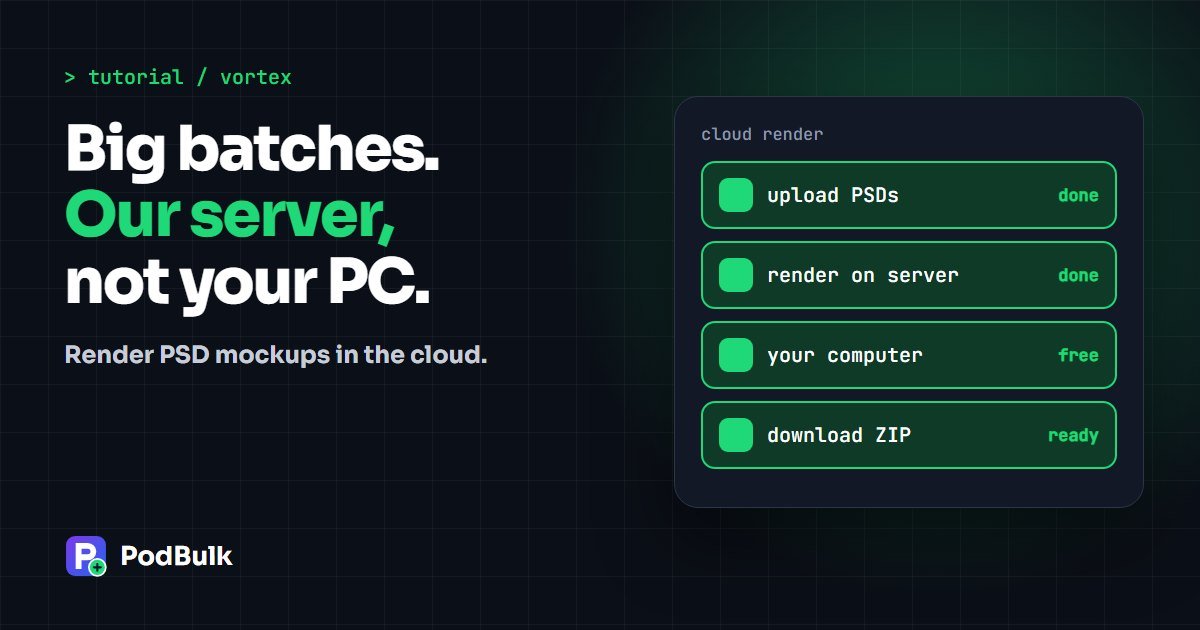

To render PSD mockups in the cloud, switch the PodBulk engine to Vortex, add your PSDs and designs, and generate. The work runs on PodBulk’s server rather than your computer, so a slow laptop can still finish a big batch. You keep using your own templates, and you don’t need Photoshop.
The video above walks through it in about a minute. This guide explains when Vortex is the right choice, how to set up a run, what the limits are and when the Complex engine is still better.
Vortex in 5 steps
- Open the PodBulk mockup tool and switch the engine to Vortex.
- Add your PSD templates and designs.
- Open settings and pick the Smart Object mode, file type and folders.
- Check your PSDs and test one design.
- Generate, then download your finished ZIP.
Why big mockup batches struggle on your own computer
A PSD is heavy. Layers, masks, effects and high-resolution art all need to be opened, filled and flattened. Do that once and it’s fine. Do it for 20 templates and 50 designs and you’re asking for 1,000 renders.
Photoshop actions and browser-based engines both lean on your machine’s memory. That’s why fans spin, tabs slow down and an older laptop may give up halfway. If that sounds familiar, our comparison of Photoshop scripts and Vortex goes deeper.
What does Vortex do differently?
Vortex sends the job to PodBulk’s server. Your browser handles the upload and the download, and the server does the render in between. The rest of your computer stays available for listings, titles or customer messages.
Nothing needs installing. There’s no plugin, no desktop app and no Photoshop licence involved. If you want the big-picture case, read why Vortex changes the job.
Vortex or Complex?
| Vortex | Complex | |
|---|---|---|
| Where it renders | PodBulk’s server | Your browser |
| Best for | Large batches, flat scenes, slow computers | Curved or warped Smart Objects, private local runs |
| Your files | Temporary copies on the server | Stay on your computer |
| Plans | PAID: 450 a month. Premium: 2,000 a month | All plans. Free: 200 mockups a month |
| Output | PNG or JPG | JPEG, PNG or PSD |
A simple rule: use Vortex for flat print areas such as posters, frames, phone cases and flat-lay shirts. Use Complex when the design has to bend around the product.
Step 1: switch to Vortex
Open the mockup tool and find the Engine bar at the top. Press Vortex. You’ll need a PAID or Premium plan. The upload steps look the same as Complex, so there’s nothing new to learn.
Step 2: add PSDs and designs
Drop in your templates and designs. On PAID and Premium, your render allowance sets the real limit, so count before you start: PSDs × designs = renders. Ten PSDs and 20 designs make 200.
Use the same templates each week? Vortex can keep your PSDs in your own browser and group them into profiles, so you don’t have to find the same files again. Saved files stay on that browser, so they won’t follow you to another computer.
Step 3: choose your settings
- Press Open settings.
- Choose Auto detect, Focus or multiFocus.
- Choose PNG for best quality or JPG for smaller files.
- Choose a folder per design, a folder per PSD or one folder.
- Press Save settings.
Auto detect uses the Smart Object if there’s only one. If there are several, it looks for podmock or names starting with nameit_. Otherwise, name the target with our Focus tutorial, or fill several with multiFocus.
The folder choice matters more than it looks. A folder per design suits listing one product at a time. A folder per PSD suits uploading one product type across a shop. Files are named with the design and the PSD, so you can always tell them apart.
Step 4: test before you spend renders
Press Check my PSDs first, then run one design on your templates. A one-design test only spends a few renders and catches almost everything: the wrong layer, a curved surface rendered flat, or an effect that looks different.
Look at each result at full size before going further. Our quality checklist is a good list to work through.
Step 5: generate and download
Press Generate mockups. A progress display follows the job while the server works. When it finishes, one image downloads directly and larger runs come as a ZIP. A Download again link is there if your browser blocks the file.
Only successful renders count against your monthly total. If one PSD fails, the rest of the batch can still finish.
How many renders do you need?
| Your typical drop | Renders | Plan |
|---|---|---|
| 10 designs × 5 PSDs, 4 times a month | 200 | PAID |
| 20 designs × 5 PSDs, 4 times a month | 400 | PAID |
| 30 designs × 10 PSDs, 4 times a month | 1,200 | Premium |
| 50 designs × 10 PSDs, 4 times a month | 2,000 | Premium |
Check current plans on the PodBulk pricing page. Renders don’t roll over, so a quiet month doesn’t build up extra for the next one.
What should you know before a big run?
- Very large PSDs are accepted but take longer, and the app warns you when a file is big.
- Server copies are temporary and removed 48 hours after last use.
- Curved Smart Objects can render flat, so test those on Complex.
- Layer names must still be right. Vortex is fast, but it can’t guess your target.
- A stable connection helps, because large PSDs still have to upload.
What if a Vortex run looks wrong?
| What you see | Likely cause | Fix |
|---|---|---|
| Smart Object not found | Several Smart Objects and no clear target | Use Focus or multiFocus |
| Design looks flat on a mug | Warped Smart Object | Switch to Complex |
| Upload takes a while | Large PSD or slow upload speed | Save the PSD in your browser for reuse |
| Colors or effects look different | A layer effect renders differently | Test the PSD on Complex and compare |
Is your computer really the problem?
Vortex helps most when your own machine is what’s slowing you down. These signs point that way:
- Fans run loud and other apps lag during a batch
- The browser tab crashes or runs out of memory partway through
- Big PSDs take far longer than small ones
- You avoid using your computer until a run ends
If your batches are small and finish quickly, Complex on the Free plan may be all you need. It’s worth testing that first. Paying for cloud rendering makes sense when waiting costs you real working hours, or when a run simply can’t finish on your hardware.
Which templates suit Vortex best?
Flat print areas are the safest choice. Posters, framed art, phone cases, tote bags, pillows and flat-lay shirts usually render well, because the design doesn’t need to wrap around a surface.
Be careful with anything bent. A mug wrap, a curved bottle label or a warped cap panel may come out flat in Vortex. That isn’t a broken run. It’s a template that needs the heavier Complex engine. Test once, make a note of it, and sort your library into two groups so you never have to wonder again.
What does a weekly Vortex routine look like?
Most of the gain comes from repeating the same setup. Here’s a simple routine for a seller who posts new designs each week:
- Save your tested PSDs in the browser as a profile, such as Wall Art.
- Export this week’s designs into one folder.
- Pick the profile and add the designs.
- Confirm your settings, then generate.
- Keep writing listings while the server works.
- Download the ZIP and upload to your shop.
Premium users can go a step further. PodBulk Workflow chains mockups with tools such as resize and rename, so more of that list happens in one run.
Are your files safe on Vortex?
Vortex has to receive your PSDs and designs, because it renders them on a server. That’s the honest trade-off compared with Complex, where files stay on your computer. Server copies are temporary and removed 48 hours after they were last used. Finished results are also cleared on the same schedule, so download your ZIP soon after a run.
Have client work or an agreement that says files mustn’t leave your machine? Use Complex for that job. Our privacy policy explains what’s stored and why.
Do you need Photoshop for Vortex?
No. Vortex reads your PSD directly, so you never need to open Photoshop or keep a licence running. You may still want a PSD editor to rename layers in a new template, but that’s a one-time job. Once a template is tested, the whole weekly run happens in your browser window.
The short version
Vortex moves the heavy part of mockup production off your computer. Switch the engine, pick your settings, test one design and let the server do the rest. Try it in the PodBulk mockup tool, see more PodBulk tutorials, or compare it with the rest of our best mockup generators list.
Sources
Plan limits come from PodBulk pricing. Google’s guidance on video structured data was followed for this page. PodBulk behaviour was checked against the live app and server on October 31, 2026.
Frequently asked questions
What is Vortex in PodBulk?
Vortex is PodBulk’s cloud render engine. It fills your PSD templates on PodBulk’s server instead of on your own computer, then sends back the finished mockups.
Do I need a powerful computer for Vortex?
No. Your browser uploads the files and collects the results. The rendering happens on the server, so you can keep working.
Which plans include Vortex?
PAID includes 450 Vortex renders a month and Premium includes 2,000. The Free plan uses the Complex engine in your browser.
What counts as a Vortex render?
Each finished mockup image counts as one render. Only successful renders count.
Does Vortex keep my PSDs?
Copies on the server are temporary and removed 48 hours after they were last used. If you choose to save PSDs, they’re stored in your own browser.
Can Vortex render curved mockups?
Curved or warped Smart Objects can come out flat in Vortex. Use Complex for bent mugs, wrapped labels and similar templates.
Can Vortex handle large PSDs?
Yes, large PSDs are accepted, but they take longer. Very large files wait in their own queue and render one at a time.
Does Vortex support Focus and multiFocus?
Yes. Vortex offers Auto detect, Focus and multiFocus. It also lets you sort your ZIP by design, by PSD or into one folder.
Stop making mockups one by one
Every design on every PSD template, in one run, right in your browser. 200 free mockups a month.