
 Gamer · October 31, 2026 · ~8 min read
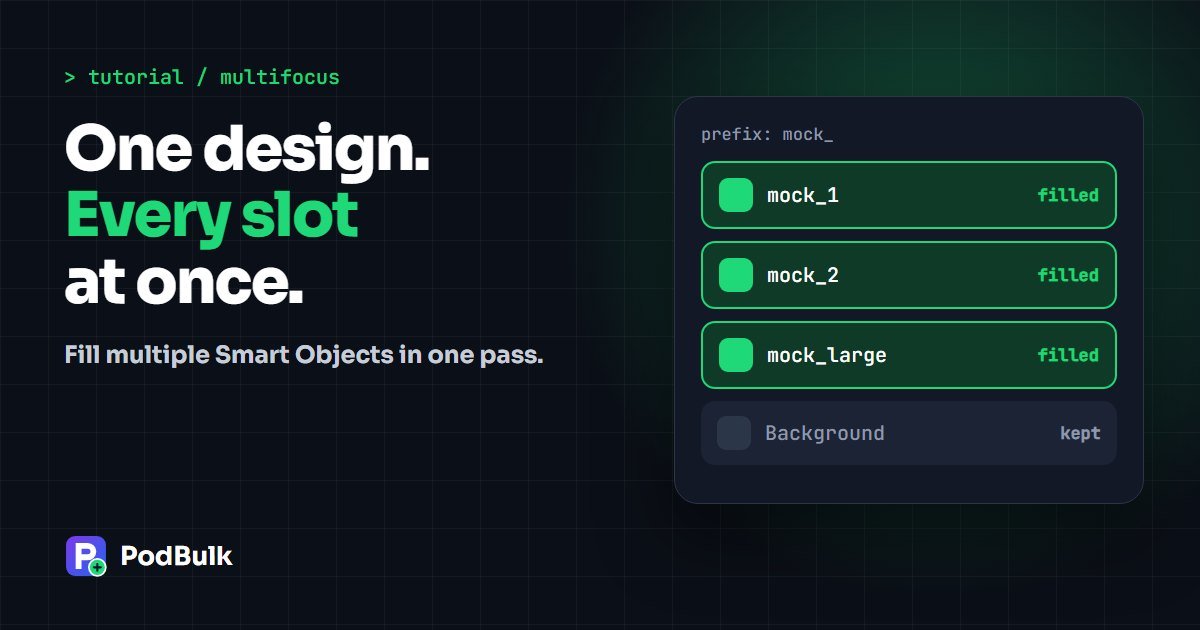

To put one design into several Smart Objects at once, give them names that start the same way, then enter that shared start in multiFocus. PodBulk finds every match and fills them all in one pass. Your finished image shows the design in each slot, without opening each one by hand.
This suits scenes with repeated products: three phones, a gallery wall, a stack of mugs. The video above shows it in about a minute. Below you’ll find the naming method, the setup and the traps that catch people on their first run.
multiFocus in 5 steps
- Rename the slots with one shared start, like
mock_1andmock_2. - Add your PSDs and designs to the PodBulk mockup tool.
- Open settings and choose multiFocus.
- Enter the shared start:
mock_. - Check the PSD, test one design, then generate.
What problem does multiFocus solve?
By hand, each slot means opening a Smart Object, replacing its contents, saving and going back. A six-frame wall art scene takes six rounds of that for one design. Across 30 designs, that’s 180 rounds for one template.
Focus doesn’t help here, because it fills one exact name. Auto detect may also stop, since it can’t tell which of many Smart Objects you mean. multiFocus covers the gap: you describe a group of layers, and the whole group gets the design.
How does multiFocus match Smart Object names?
multiFocus compares the start of each Smart Object’s name with the text you typed. If the name begins with it, that layer is filled. Nothing else about the name matters.
| You enter | Layer name | Filled? |
|---|---|---|
mock_ | mock_1 | Yes |
mock_ | mock_large | Yes |
mock_ | mock_37 | Yes, numbers can skip |
mock_ | Mock_1 | Not in Complex, capitals count |
mock_ | my_mock_1 | No, it must be at the start |
mock_ | background | No |
Step 1: name your slots
Open the PSD in Photoshop or another PSD editor and rename each slot. Keep the first part identical and let the end differ. frame_1, frame_2 and frame_large all work with frame_.
End the shared part with an underscore. It isn’t required, but it stops accidents. Type mock and a texture called mockup_paper would join in. Type mock_ and it won’t.
| Scene | Layer names | Enter |
|---|---|---|
| Gallery wall | frame_1, frame_2, frame_large | frame_ |
| Three phones | screen_1, screen_2, screen_3 | screen_ |
| Mug set | mug_left, mug_right | mug_ |
| Clothing pack | shirt_top, shirt_fold | shirt_ |
Bought templates often come with odd names. Keep a copy of the original, then rename the working file. Our layer naming guide covers this in more depth.
Step 2: check that your slots are separate
Here’s a Photoshop detail worth knowing. Smart Objects copied with a plain duplicate can share the same source, as Adobe’s guide to duplicating embedded Smart Objects explains. For multiFocus that’s usually fine, since every slot gets the same design. Just remember that editing one shared slot in Photoshop can change the others.
Next, compare each slot’s shape. If one is square and another is wide, one design can’t fit both perfectly. Choose Fit inside or Stretch to fill based on your test, or keep the slots the same shape.
Step 3: turn on multiFocus
- Open the PodBulk mockup tool and add your PSDs and designs.
- Press Open settings.
- Under Which smart objects to fill, choose multiFocus.
- Enter the shared start of the names.
- Press Save settings.
The same text is used for every PSD in the run. So a phone template and a frame template with different prefixes belong in separate runs, unless you rename them to match. Choosing one family name, such as mock_, across your library saves this step.
Step 4: test, then run
Press Check my PSDs first. Complex also logs how many Smart Objects matched, with their names. Compare that number with what you expect. Six frames should mean six matches.
Run one bright test design and look for empty slots, leftover placeholder art and designs turned the wrong way. If all is well, add every design and generate the batch.
What goes wrong with multiFocus, and how do you fix it?
| What you see | Likely cause | Fix |
|---|---|---|
| Nothing matches | Prefix is wrong or uses different capitals | Copy the start of the name from the PSD |
| One slot stays empty | That layer’s name differs slightly | Rename it to match |
| An extra layer changes | A texture shares the same start | Rename it or use a stricter prefix |
| A hidden layer got filled | Hidden matches count in Complex | Rename or delete the old layer |
| Design looks cut off in one slot | The slot has a different shape | Use Fit inside, or match the shapes |
multiFocus or All of them?
In Complex, there’s also a setting called All of them, which fills every Smart Object in the PSD. It’s quick when a template has nothing else to protect. But a mockup with a logo tag or texture stored as a Smart Object would lose it. multiFocus takes a minute of renaming and gives you exact control.
For help with front and back prints, or other jobs that need different art per slot, read our guide to PSDs with multiple Smart Objects.
Does it work on Vortex?
Yes. Vortex has a multiFocus option too, and it’s a good match for flat scenes like frames and posters. Vortex can render a curved Smart Object flat, so use Complex for bent mugs or warped labels. The Vortex guide covers the choice.
Which mockups suit multiFocus best?
multiFocus works best when one design repeats across a scene. Each of these is a good fit, because every slot should show the same art:
- Gallery walls with two to nine frames
- Phone case or screen trios
- Mug and tumbler sets shown side by side
- Folded and hanging views of the same shirt
- Sticker sheets and bundle shots
It’s a poor fit when each slot needs its own art, such as a set of four different posters. Every matching slot receives the same file, so that job needs another approach. Build one template per poster, or fill the slots in separate passes.
How much work does multiFocus save?
Take a scene with six frames and 30 designs. By hand, that’s 180 replacements and 30 exports. With multiFocus, you rename six layers once, then type one prefix. The run gives you 30 finished images, each with all six frames filled.
The saving grows with every template you add, because the renaming happens only once. Ten scenes with 30 designs give you 300 mockups from a single run setup, as long as they share a prefix. For a rough sense of the hours involved, see how much time bulk replacement saves.
How do you prepare a template you bought?
Bought mockups often use names like Your Design Here on every slot, or a mix of labels. Sellers rarely plan for automation, so a few minutes of tidying is normal.
- Save a working copy and keep the original untouched.
- Filter the Layers panel to show Smart Objects only.
- Turn each one off and on to see what it controls.
- Rename the slots that should hold your design.
- Leave textures, shadows and logos with their own names.
- Save, then run one test design.
That third step matters most. Some Smart Objects hold paper grain or light effects. Fill one of those by mistake and the scene loses its realism. A quick toggle shows you which is which.
Check the licence too. Many marketplaces let you edit a template for your own listings but don’t let you resell the PSD. Renaming a layer for your own use is normally fine, but the seller’s terms decide.
What should you look for in the test image?
Zoom in on each slot, not just the whole scene. At thumbnail size, a missed frame can hide easily. Use a test design with a clear top and an obvious edge, like a bright arrow. It shows rotation and cropping at a glance.
- Every slot shows the new design
- No old placeholder art peeks through a transparent area
- The design points the same way in each slot, unless the scene turns it
- Shadows and reflections still sit on top
If one slot looks wrong, fix that template and test again before you run the full set. One test costs one mockup. A bad batch costs a whole run.
Can you mix prefixes in one run?
No. A run uses one multiFocus entry for every PSD. If your phone templates use screen_ and your frames use frame_, a PSD without a match will stop. Run them separately, or rename the layers to one family. A shared name such as mock_ is usually the easier long-term choice, and it means one saved habit instead of several.
The short version
Give your slots one shared start, end it with an underscore, enter it in multiFocus and test one design. One setup then covers every design in the batch. Open the PodBulk mockup tool to try it, or learn the one-slot version in our Focus tutorial.
Sources
Adobe references: duplicate an embedded Smart Object and replace the contents of a Smart Object. PodBulk behaviour was checked against the live app on October 31, 2026.
Frequently asked questions
What is multiFocus in PodBulk?
multiFocus fills every Smart Object whose name starts with the text you enter. Enter mock_ and mock_1, mock_2 and mock_left all get the same design.
Do the names need numbers?
No. Only the start of the name matters. The rest can be numbers or words, and numbers don’t need to run in order.
Do I need an underscore in the prefix?
It isn’t forced, but we recommend it. mock_ won’t match a layer called mockup background, while mock would.
Can multiFocus put different designs in each slot?
No. Every matching Smart Object gets the same design in that mockup. For different art in each slot, build separate templates or separate passes.
Are hidden Smart Objects included?
In Complex, yes. Hidden Smart Objects that match the prefix are filled, so check for old layers before a big run. Folders are searched automatically.
What is the difference between multiFocus and All of them?
multiFocus fills the names you choose. All of them, in Complex, fills every Smart Object in the PSD, including textures or logos you might want to keep.
Does it count as one mockup or several?
One. A PSD with six slots and one design gives one finished image, and PodBulk counts one mockup per finished image.
Stop making mockups one by one
Every design on every PSD template, in one run, right in your browser. 200 free mockups a month.