 Gamer · October 31, 2026 · ~8 min read
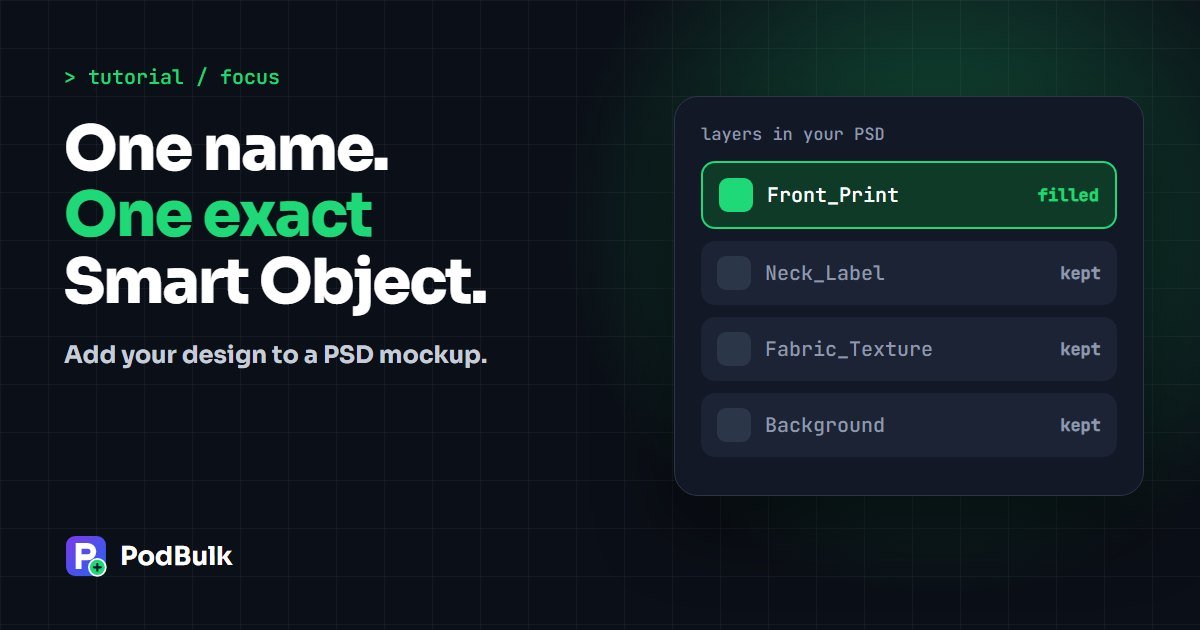
To add your design to one exact spot in a PSD mockup, type that Smart Object’s layer name into Focus. PodBulk then fills that layer, and only that layer, for every design and every PSD in your run. You don’t need Photoshop to run it.
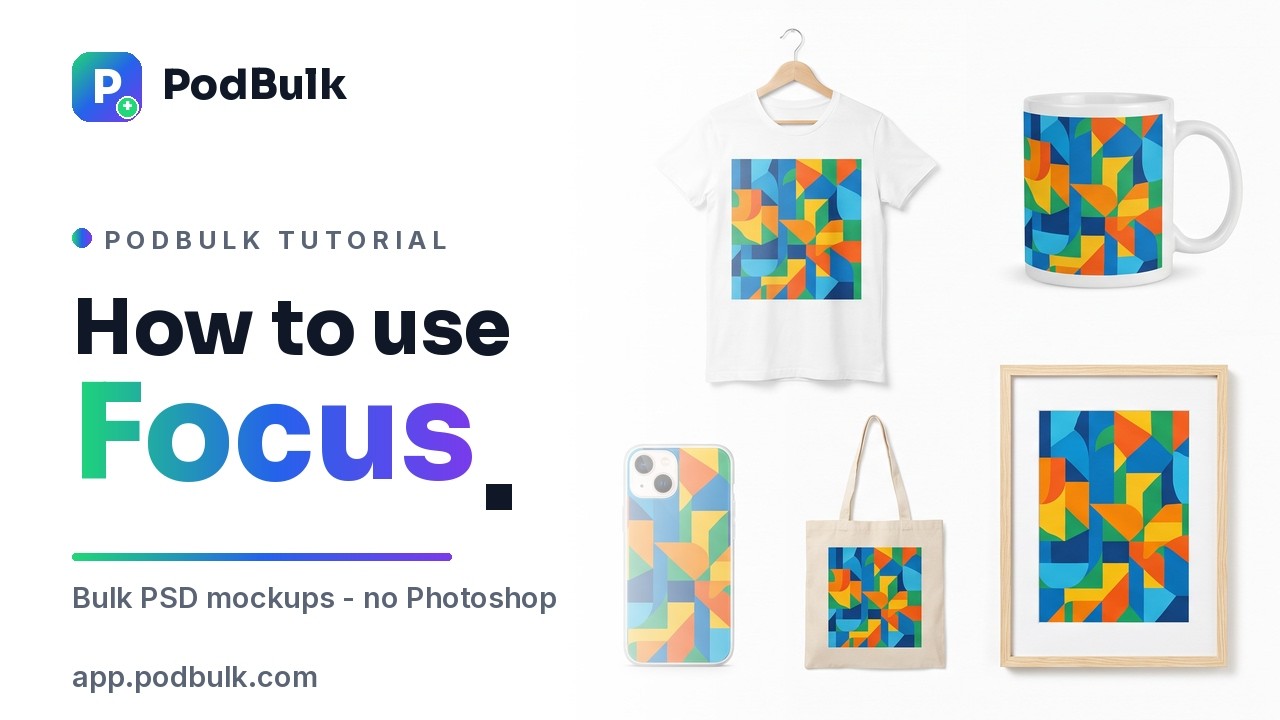
Focus is for templates where a program can’t tell which Smart Object is yours. The video above shows it in about a minute. This guide adds the naming rules, the mistakes to avoid and what to do when a run stops.
Focus in 5 steps
- Find the Smart Object’s exact name in your PSD.
- Open the PodBulk mockup tool and add your PSDs and designs.
- Open settings and choose Focus.
- Type the exact layer name and save your settings.
- Check your PSDs, test one design, then generate the batch.
Why does a PSD mockup need Focus?
A Smart Object is a layer that holds other content inside it. Adobe describes Replace Contents as a way to swap that content while keeping the layer’s transforms. That is what makes a mockup work: your design lands in the same perspective, every time.
Many mockups hold more than one Smart Object, though. A shirt scene might have the print, a neck label and a background texture. A phone template might have the screen and a reflection. All of them are Smart Objects, and software can’t know which one you care about.
Auto detect handles the clear cases. If a PSD has one Smart Object, that one is used. If it has several, PodBulk looks for the reserved names podmock or nameit_1, nameit_2 and so on. When it still can’t tell, it stops rather than filling the wrong layer. Focus removes the doubt: you say which layer, by name.
Which Smart Object mode do you need?
| Your PSD | Use | What you enter |
|---|---|---|
| One Smart Object | Auto detect | Nothing |
| Several, but one gets the design | Focus | The exact name, like Front_Print |
| Several that all get the same design | multiFocus | The shared start, like mock_ |
| Every Smart Object gets the design | All of them (Complex) | Nothing |
For more on those options, read PodBulk Smart Object modes explained.
Step 1: find the exact layer name
Open the PSD in Photoshop or a free PSD editor and look at the Layers panel. Smart Objects show a small badge on the thumbnail. Adobe’s panel can also filter layers down to Smart Objects, which helps on big templates.
Copy the name just as it’s written. If the name is vague, like Layer 17 copy, rename it to something clear. Our layer naming guide has patterns that work well across a whole template library.
Don’t own an editor? Add the PSD to PodBulk and press Check my PSDs first. It lists the Smart Objects it finds, right in your browser.
Step 2: add your PSDs and designs
Open the mockup tool, then drop your PSD templates into step 2 and your designs into step 3. A run takes up to 20 PSDs and 50 designs. PNG files with transparent backgrounds suit most product art.
Every design goes on every template, so 5 PSDs and 10 designs give you 50 mockups. Focus uses one name per run, which leads to the most useful habit in this guide.
Step 3: use the same name in every PSD
Focus applies your one name to all the PSDs in the run. If three templates call the layer Front_Print and a fourth calls it Design, the fourth will stop. Either rename that layer or run it on its own.
Pick one name, such as Design, and use it across your library. It takes a few minutes once and saves that work on every drop after. The video makes the same point, because this is what lets a mixed set of templates run in one go.
Step 4: turn on Focus
- Press Open settings in step 4.
- Under Which smart objects to fill, choose Focus.
- Type the name into the box that appears.
- Choose your fill mode, output and folders.
- Press Save settings.
Stretch to fill makes the design cover the Smart Object’s canvas. Fit inside keeps the whole design visible. If your design is a different shape from the slot, try Fit inside so that nothing gets cut or stretched.
Step 5: test one design, then run it all
Press Check my PSDs first, then run one bright test design on your PSDs before you commit the whole batch. Look at the result at full size. Check that the design is on the right product, that it faces the right way and that shadows still sit on top.
Happy with it? Add the rest and press Generate mockups. Your files come back in a ZIP, sorted the way you chose. This folder guide helps you choose a layout before a large batch.
What goes wrong with Focus, and how do you fix it?
| What you see | Likely cause | Fix |
|---|---|---|
| The PSD stops with a name error | The name is different or has a stray space | Copy it from the list of names PodBulk shows |
| It works on some PSDs only | Templates use different names | Use one name across all of them |
| The design lands on the wrong item | You named the wrong Smart Object | Check the layer by turning it off and on |
| You need the design in two places | Focus fills one name only | Use multiFocus |
| The result looks soft | The Smart Object canvas is small | See the blurry mockup fix |
Good layer names to copy
Designfor one simple print areaFront_PrintandBack_Printfor clothingMug_Artworkfor a mug wrapPoster_Mainfor a wall art scenePhone_Screenfor a device template
Short and clear beats clever. A name should tell you what the layer does the next time you open that PSD, months from now.
Does Focus work in both Complex and Vortex?
Both engines offer Focus. Complex runs in your browser, handles curved Smart Objects and is included on Free. Vortex renders on PodBulk’s server, so your computer stays free. Complex treats capitals as different and Vortex does not, so match them exactly and your PSD behaves the same on both.
Not sure which to pick? Our Vortex guide explains when cloud rendering is the better choice.
How do you rename a Smart Object in Photoshop?
Double-click the layer’s name in the Layers panel, type the new name and press Enter. Click the words, not the thumbnail. Double-clicking the thumbnail opens the Smart Object’s contents, which is a different job. Then save the PSD and use that saved copy in PodBulk.
Renaming doesn’t change how the mockup looks. It only changes the label on the layer, so it’s a safe edit. Still, keep the first copy of any template you bought. If something goes wrong, you can start again in seconds.
You don’t need a Photoshop plan for this. Photopea is a free browser editor that opens PSD files, and you can rename a layer there too. Do it once per template and you’ll rarely have to touch that file again.
What does a real Focus run look like?
Take a shirt template with three Smart Objects: Front_Print, Neck_Label and Fabric_Texture. Auto detect can’t choose, because none has a reserved name. If you only want your design on the chest, type Front_Print into Focus.
Now add 12 designs and four templates that all use the same layer name. That’s 48 mockups from one short setup. The neck label and the fabric stay as they are, because Focus never touches a layer you didn’t name.
Say you’d like your logo on the neck label as well. That’s a separate job. Save the first output as PSD in Complex, or run a second pass on a copy of the template with the logo as your design.
How big should your design be?
Match your design to the Smart Object’s canvas, not to the whole mockup. A 6000 px template may hold a slot that’s only 1500 px wide. Open the Smart Object once to see its real size, then export your art at that size or larger.
Shape matters as much as size. A tall design in a square slot will either stretch or leave space around it. Pick the fill mode on purpose:
- Stretch to fill when your art is already the slot’s shape.
- Fit inside when the whole design has to stay visible.
- A transparent PNG when the product colour should show around your art.
How do you set up a template library for Focus?
A library is simply a folder of tested PSDs. Spend one sitting on it and each later drop gets faster. This routine works well:
- Sort templates into folders by product: shirts, mugs, posters.
- Give the main Smart Object the same name in each template.
- Run one test design and look at every result.
- Note any template that needs Complex rather than Vortex.
- Keep the tested copies apart from your untouched originals.
After that, a new drop is mostly choosing designs. The setup you tested last month still works, because the layer names haven’t changed.
The short version
Focus answers one question for the software: which Smart Object gets the design? Give your layer a clear name, use it across your templates, test one design, then run the batch. Try it in the PodBulk mockup tool, or browse more PodBulk tutorials.
Sources
Adobe references: replace the contents of a Smart Object and filter the Layers panel by Smart Objects. PodBulk behaviour was checked against the live app on October 31, 2026.
Frequently asked questions
What does Focus do in PodBulk?
Focus puts your design into one Smart Object, chosen by its exact layer name. It repeats that for every PSD and every design in the run.
When should I use Focus instead of Auto detect?
Use Focus when a PSD has several Smart Objects, or when the one you want has a name PodBulk can’t pick on its own. If the PSD has only one Smart Object, Auto detect is enough.
Does the Focus name have to match exactly?
Yes. Copy the name from the Layers panel. Complex treats capital letters as different, so Front_Print and front_print are not the same. Vortex ignores capitals, but matching them exactly keeps a PSD safe on both engines.
What happens if the name isn’t in the PSD?
PodBulk does not guess. Complex stops that PSD and shows the Smart Object names it found, so you can correct the name and run it again.
Do I need Photoshop to use Focus?
No to run it. The batch happens in your browser or on the Vortex server. You only need Photoshop, or another PSD editor, if you want to rename a layer inside the template.
Can Focus fill two Smart Objects?
No. Focus fills one name per PSD. To fill several, give them a shared start to their names and use multiFocus.
Is Focus on the Free plan?
Yes. Free includes the Complex engine, which is where Focus runs for Free users, with 200 mockups a month. Vortex needs a paid plan.
Stop making mockups one by one
Every design on every PSD template, in one run, right in your browser. 200 free mockups a month.