
 Gamer · October 27, 2026 · ~7 min read
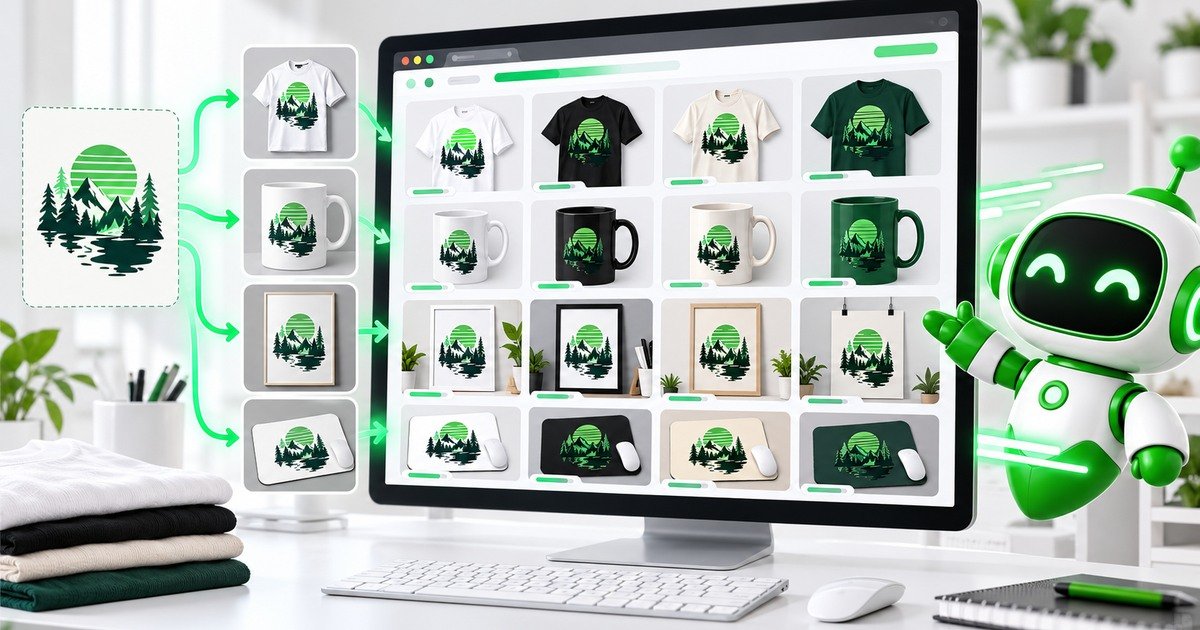
To create 1,000 mockups, you do not need to open a PSD 1,000 times. You need a design-and-template matrix. For example, 50 designs multiplied by 20 PSD templates equals 1,000 finished images.
The difficult part is not the multiplication. It is choosing the correct Smart Object, keeping templates compatible, naming the outputs and catching failures before they spread across the full batch. This guide shows a repeatable browser workflow with PodBulk using your own PSD mockup templates and no Photoshop production subscription.
The workflow at a glance
- Choose the output matrix: designs × templates.
- Audit every PSD and identify the intended Smart Object target.
- Standardize design files and remove drafts.
- Test Auto detect, Focus or multiFocus on a small proof set.
- Choose the appropriate PodBulk engine or profile for the PSD.
- Run the batch in manageable groups.
- Inspect outputs and download organized results.
Start with the math
Write the batch size before uploading anything:
| Designs | PSD templates | Possible outputs |
|---|---|---|
| 10 | 5 | 50 |
| 25 | 12 | 300 |
| 50 | 20 | 1,000 |
| 100 | 20 | 2,000 |
This is the maximum when every design runs through every template. Remove combinations you do not need. A mug design may not belong in a wall-art scene, and a portrait poster may crop badly in a square placeholder.
Why use your own PSD templates?
A fixed online mockup library is convenient, but many sellers already own PSDs that match their niche or brand. Your own templates let you preserve the lighting, perspective, scene selection and product presentation that customers recognize.
Adobe explains that replacing Smart Object contents keeps the transformations applied to the placeholder. That is why a well-built mockup can accept new artwork while retaining perspective, warp and placement. PodBulk automates the repetitive replacement and export workflow in the browser.
Audit the Smart Objects before batching
A PSD can contain Smart Objects for artwork, shadows, labels, textures and background components. Automation should not guess among several unrelated candidates. Inspect the layer names and decide which mode communicates your intent.
Auto detect: one obvious target
Use Auto detect when the PSD contains exactly one fillable Smart Object. A layer literally named podmock is preferred. If there are zero targets or several candidates, the safe behaviour is to stop rather than fill the wrong layer.
Focus: one exact layer name
Use Focus when the PSD has several Smart Objects but one should receive the design. Enter the exact case-sensitive name, such as Front_Print. If the target is missing, review the list of objects found instead of accepting a silent fallback.
multiFocus: one design in several placements
Use multiFocus when the same artwork belongs in multiple objects in one scene. Name them with a shared prefix—mock_1, mock_2, mock_large—and target mock_. The trailing underscore makes the family deliberate.
Hidden Smart Objects still count, and PodBulk searches inside layer folders automatically. Read the Smart Object naming guide before standardizing a template library.
Prepare the design folder
Use final PNG files when transparency matters and high-quality JPEG files for opaque photographic artwork. Remove thumbnails, alternate drafts and files that should not be rendered. Give every design a stable identifier such as mountain-green-001.png.
Keep dimensions consistent within a batch. The design should have enough pixels for the largest target, but exporting enormous files without purpose wastes memory. PPI alone does not fix missing pixels; compare actual width and height with the embedded Smart Object canvas.
Prepare the template library
Create a master folder that is never overwritten and a tested production copy. Give each template a descriptive name such as mug-white-front.psd or poster-frame-living-room-portrait.psd. Record its target mode, layer name or prefix, expected design ratio and last successful test.
Do not assume two PSDs from the same seller have identical structure. Masks, linked assets, colour modes and nested objects may differ. Test each file.
Run a proof batch before the 1,000
- Select three designs: light, dark and high contrast.
- Run them through every template.
- Open the outputs at full size.
- Check orientation, crop, perspective, masks, shadows and colour.
- Confirm the filename maps back to the design and template.
- Fix or exclude templates that fail.
- Repeat with one unusually wide or tall design if the shop contains mixed ratios.
A three-design proof across 20 templates creates only 60 files. Finding a bad target there is far cheaper than discovering it after 1,000 exports.
Choose a processing mode for the PSD
Simple templates may work with the standard browser workflow. More demanding PSDs can require a different engine or a tested Vortex profile. The correct choice depends on actual structure, not the visual complexity of the preview.
If a template does not render correctly, preserve the original, inspect its Smart Objects and test one change at a time. Do not keep rerunning the full matrix.
Organize outputs for products and marketplaces
Choose a naming system before export. A useful filename can combine the design ID and scene ID:
mountain-green-001__mug-white-front.jpgmountain-green-001__poster-living-room.jpgmountain-green-001__mouse-pad-desk.jpg
Keep one folder per design when listing products, or one folder per scene when reviewing visual consistency. PodBulk's local downloads and organization tools reduce repeated upload-download cycles. After mockup creation, use bulk resize, convert, rename or watermark only when the marketplace workflow requires it.
Quality control for a large batch
Automation increases both good output and repeated mistakes. Inspect a sample from the beginning, middle and end of every batch. Reject stretched artwork, clipped text, missing texture, wrong colours, transparent halos and misleading product placement.
Also view the image as a small marketplace thumbnail. A technically correct mockup may still be too busy to sell the design. Keep a QA log with the template, problem and fix so the same failure does not return next week.
Browser processing and privacy
PodBulk is built around local browser processing, so the production workflow does not require sending PSDs to a cloud rendering queue. That can be useful for purchased templates and client artwork. Browser capability, memory and file complexity still matter, so close unnecessary tabs and use manageable batches.
Never treat “local” as permission to ignore licences. Confirm that you may use the PSD and artwork for commercial products and mockup images.
Why this is faster than manual Smart Object replacement
The manual workflow repeats the same sequence: open PSD, find the target, replace contents, save, export, rename and repeat. A script can automate part of that sequence, but scripts often depend on exact layer assumptions and a working Photoshop environment.
PodBulk turns the repeated production step into a browser batch while giving you deliberate targeting through Auto detect, Focus and multiFocus. The time saved is not only clicking; it is fewer wrong-layer exports and more organized delivery.
Final 1,000-mockup checklist
- Output matrix confirmed.
- Designs final and consistently named.
- Each PSD target documented.
- Proof batch approved.
- Engine or Vortex profile tested.
- Output format and naming chosen.
- Storage space available.
- QA sample plan written.
- Original templates preserved.
- Marketplace derivatives created only after masters pass review.
Start the batch
Open the PodBulk mockup app, choose your tested PSDs and begin with the proof set. Once targeting and output quality are confirmed, expand to the full design × template matrix.
If Photoshop scripts have already selected the wrong layer, compare the approaches in Photoshop mockup scripts vs PodBulk. For image preparation after rendering, see the PodBulk image tools guide.
Sources
Adobe references: replace Smart Object contents and Smart Objects overview and benefits.
Frequently asked questions
Can I use my own PSD templates without Photoshop?
Yes. PodBulk is designed to process compatible PSD Smart Object templates in the browser, so the production run does not require a Photoshop subscription.
How many mockups do 50 designs and 20 templates create?
If every design is rendered through every template, 50 multiplied by 20 equals 1,000 mockups.
How does PodBulk choose the correct Smart Object?
Use Auto detect for one unambiguous target, Focus for one exact case-sensitive layer name, or multiFocus for every target sharing a deliberate prefix such as mock_.
Does PodBulk upload my PSD files to a rendering server?
PodBulk's browser workflow is designed to process files locally in the browser. Confirm current product and browser requirements on the app before a production batch.
Should I run all 1,000 outputs immediately?
No. Prove each template with a small set of contrasting designs, inspect the results, then run the production matrix.
Stop making mockups one by one
Every design on every PSD template, in one run, right in your browser. 200 free mockups a month.