
Smart Objects for Mockups: A Complete Beginner-to-Batch Guide
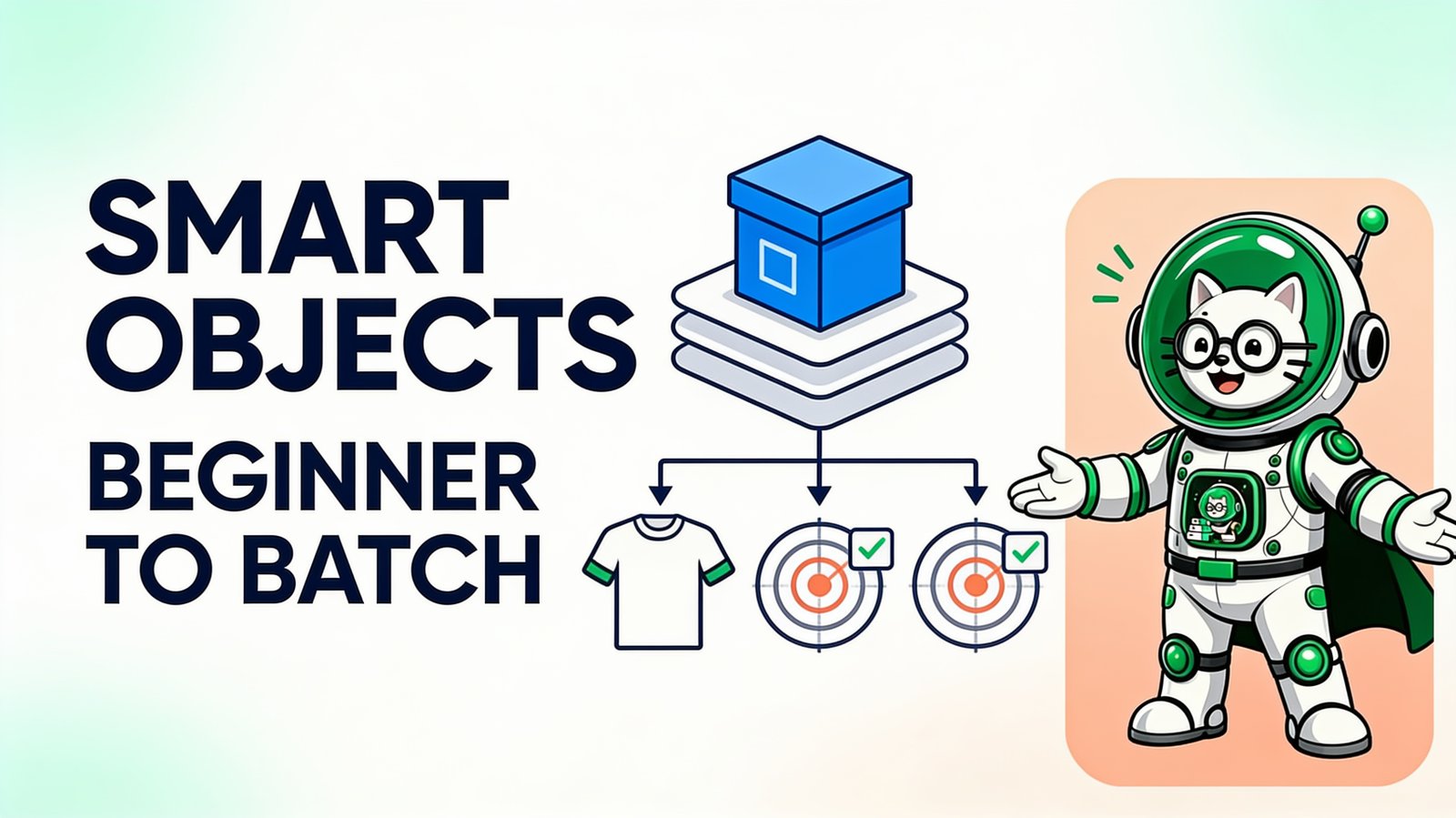
A Smart Object is a Photoshop layer that keeps source content separate from the transformations and effects applied in the parent PSD. That separation is what makes reusable mockup templates possible: replace the artwork source and the scene can preserve its perspective, texture, masks, and shadows.
Smart Object learning path
| Topic | Read next |
|---|---|
| What is a Smart Object? | Beginner explanation and practical examples |
| Replace Smart Objects | Manual concept and bulk browser workflow plus the one-by-one replacement solution |
| Multiple Smart Objects | Target front, back, sleeve, label, and scene layers |
| PodBulk Auto Detect, Focus and multiFocus | Choose the correct v39 targeting mode |
| Smart Object not updating | 12 fixes for blank, stale, missing, or wrong placements |
| Troubleshoot a PSD | Compatibility, fit, privacy, and output checks |
| Smart Object vs regular layer | When each layer type is appropriate |
What is a Smart Object?
Adobe describes Smart Objects as layers that preserve source image content and characteristics. A placed source can be scaled, rotated, warped, masked, or filtered from the parent document without immediately rewriting the original pixels. Adobe's current Smart Objects overview covers their nondestructive behavior and linked or embedded forms.
For a mockup, imagine the Smart Object as a framed window. The source design sits behind the window; the parent PSD decides the window's shape, angle, lighting, texture, and surroundings. Replacing the source changes what is visible without rebuilding the frame.
Smart Object vs regular layer
| Property | Smart Object | Regular raster layer |
|---|---|---|
| Source content | Stored as a separate embedded or linked source | Pixels live directly on the layer |
| Repeated scaling | Can recalculate from preserved source data | Upscaling after destructive reduction may lose detail |
| Replaceable mockup slot | Yes, when the template is built for it | No automatic source-container replacement |
| Direct pixel painting | Edit the source or rasterize | Paint and erase directly |
| Shared source instances | Possible | Copies are independent pixels unless otherwise linked |
Use a regular layer when you need direct pixel editing. Use a Smart Object when preserving a source, applying nondestructive transforms, reusing instances, or replacing artwork is more important.
How to identify a mockup Smart Object
Open the Layers panel and look for the Smart Object badge on the thumbnail. Mockup creators often use names such as PLACE ART HERE, YOUR DESIGN, or FRONT_PRINT, but the name is only a convention. The layer type is what matters.
Double-clicking its thumbnail in Photoshop or Photopea opens the source document. Change the source, save it, and return to the parent PSD. If the product scene updates, you found a replaceable Smart Object. A flattened preview JPG has no such container.
How to replace a Smart Object
In Photoshop, select the layer and use Replace Contents, or open the source, change it, and save. For a browser one-off, Photopea supports Smart Object editing. For repeated mockup production, PodBulk can apply a folder of designs to compatible PSD templates without requiring Photoshop.
The safe production order is one template, one difficult design, one proof. Only after the placement, crop, texture, and resolution pass should you process a full folder. See how to bulk replace Smart Objects for the complete workflow.
Multiple Smart Objects in one PSD
A product scene can contain separate containers for a front print, back print, sleeve, label, package, phone screen, poster, or background. In PodBulk v39, Auto Detect uses one unambiguous target or a preferred podmock layer; when several other Smart Objects exist, it stops and lists them instead of guessing. Use Focus for one exact name or multiFocus for a shared prefix family.
Give intended targets unique names and use explicit layer targeting. Separate passes are often easier to audit than one ambiguous operation. If two visible layers share the same source, editing one may update both; use independent Smart Object sources when the placements require different designs.
The multiple-Smart-Object guide explains linked instances, nested objects, naming, focused layers, and front/back workflows.
Smart Object troubleshooting
The wrong part of the scene changes
The PSD contains several containers and the wrong one was selected. Focus the exact layer name or isolate the intended target.
The artwork is stretched
The source design ratio does not match the Smart Object canvas or the selected fit behavior. Prepare a product-specific export and test wide and tall designs.
Several placements change together
The layers may share the same Smart Object source. Rebuild the template with independent sources if the placements need different artwork.
Effects disappear
The PSD may rely on nested objects, linked files, displacement maps, unsupported filters, or renderer-specific behavior. Try the fuller compatibility path and keep Photoshop as the fallback for files that only render correctly there.
The mockup is blank
Confirm that the target is visible, contains replaceable content, and is not hidden by another mask or group. Open the PSD manually and verify the source updates the parent.
How to build a batch-friendly Smart Object
- Use one clearly named artwork container per intended pass.
- Keep lighting, texture, and product effects in the parent PSD.
- Match the source canvas ratio to the intended print area.
- Embed required assets when the licence permits.
- Keep independent placements independent.
- Test light, dark, wide, tall, and edge-heavy artwork.
- Store an untouched master before production edits.
From one Smart Object to a catalog
Once a PSD has a reliable target, its creative work is complete and its production work can be repeated. A design folder and template folder become a predictable matrix. Explore the bulk PSD mockup hub, or open PodBulk and test one template locally in your browser.
Frequently asked questions
What is a Smart Object in Photoshop?
A Smart Object is a layer whose source content is stored separately from the transformations applied in the parent document. It can preserve source data while the parent PSD scales, rotates, warps, masks, or styles the placed content.
How is a Smart Object different from a regular layer?
A regular raster layer directly contains editable pixels. A Smart Object acts as a container around source content, which supports nondestructive transforms and reusable replacement workflows.
Can I replace a Smart Object without Photoshop?
Yes. Photopea can edit one manually in a browser, and PodBulk can replace compatible artwork Smart Objects across many designs and templates locally in the browser.
Can a PSD contain multiple Smart Objects?
Yes. Product scenes often have front, back, sleeve, label, screen, poster, or background Smart Objects. Clear names and explicit targeting prevent artwork from landing in the wrong container.
Why does editing one Smart Object update another?
Two Smart Object layers may reference the same source. If they need independent artwork, the template must use independent sources rather than linked copies.
Why is my Smart Object mockup distorted?
Check the source-canvas ratio, transform, target layer, masks, displacement maps, filters, and linked assets. Test the PSD manually and in the intended renderer before running a large batch.
Stop making mockups one by one
PodBulk turns your PSD templates + designs into bulk, listing-ready mockups right in your browser — no Photoshop, no install.