
How to Target Smart Objects in PodBulk: Auto Detect, Focus and multiFocus
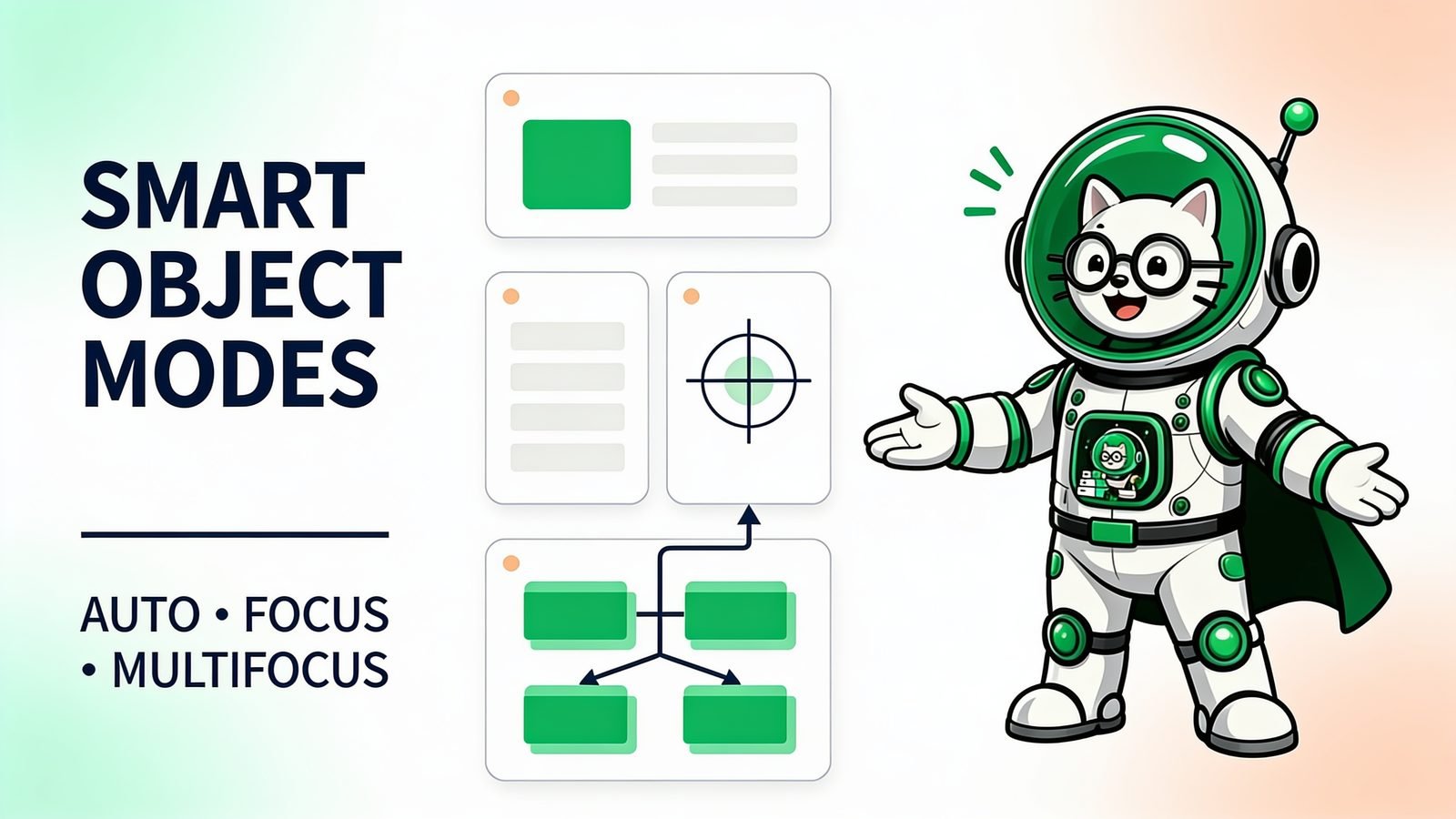
PodBulk has three Smart Object targeting modes: Auto Detect finds one unambiguous target, Focus fills one exact case-sensitive layer name, and multiFocus fills every Smart Object whose name starts with a shared prefix ending in _. All three modes search hidden layers and nested layer groups. The difference is how much instruction you give PodBulk when it decides which PSD layer receives the design.
This guide documents the targeting behavior in PodBulk v39. It is written for people using their own Photoshop PSD mockup templates, especially files with more than one Smart Object. If you first need the basic concept, read what a Photoshop Smart Object is.
Quick answer: which Smart Object mode should you choose?
| Your PSD | Choose | What PodBulk does |
|---|---|---|
| One artwork Smart Object | Auto Detect | Finds and uses it without a layer name |
| Several Smart Objects, but only one should change | Focus | Fills the one exact, case-sensitive name you enter |
| Several placements should show the same design | multiFocus | Fills every name beginning with a prefix such as mock_ |
Fast rule: one target = Auto Detect; one named target among many = Focus; one design across a named family = multiFocus.
Why PodBulk uses three targeting modes
A PSD can contain one Smart Object for a shirt print, or dozens for frames, screens, labels, shadows, and repeated product placements. Software can read layer structure, but it cannot safely invent the creator's intention. A technically valid Smart Object might represent a background sign rather than the product artwork.
PodBulk therefore separates convenience from intent. Auto Detect handles the simple, unambiguous case. Focus lets you identify one layer precisely. multiFocus lets you identify a whole naming family. When the selection is ambiguous or invalid, PodBulk stops before rendering instead of creating output that looks finished but is wrong.
1. Auto Detect: find the Smart Object for me
Auto Detect requires no layer name. PodBulk scans the PSD's complete layer tree and follows this decision:
- If a Smart Object is literally named
podmock, PodBulk prefers that designated target. - Otherwise, if exactly one Smart Object exists, PodBulk uses it.
- If no Smart Object exists, PodBulk stops because the PSD has nothing it can fill.
- If several Smart Objects exist, PodBulk stops, lists them, and asks you to choose Focus or multiFocus.
A zero-target error explains the problem directly: “That PSD has no smart object in it, so there is nothing to fill.” A multiple-target error explains that PodBulk could not determine which placement you intended and shows the detected names. The error is a safety check, not a failed render.
When Auto Detect is best
Use it for a simple shirt, mug, poster, book, canvas, or phone mockup with one replaceable artwork container. It is also useful for a template library that deliberately names its production target podmock. You do not have to inspect or type a layer name for every ordinary single-placement PSD.
Why Auto Detect refuses to guess
The older approach of choosing one valid object could generate the wrong placement without an obvious technical error. A design on a sleeve or background panel may still look like a polished mockup. Stopping at ambiguity makes the problem visible before a large batch multiplies it.
2. Focus: fill one exact Smart Object layer
Focus targets one Smart Object by its full layer name. Type the name exactly as it appears in the PSD Layers panel. The match is case sensitive: Mock is not the same as mock.
For example, a PSD might contain mock_41, mock_1, and Mock. Entering Mock fills only that exact target. Entering mock does not silently select one of the others. PodBulk stops and reports that the requested name was not found, then lists the Smart Objects it did find, including a hidden marker where applicable.
The v39 safety fix
Before v39, a mistyped Focus name could fall back to the only Smart Object in the PSD. That created a dangerous result: the run completed, but it did not follow the explicit instruction. In v39, a missing Focus name is a hard stop. PodBulk tells you what the PSD contains so you can copy the correct spelling and try again.
When Focus is best
- A shirt PSD has separate
Front,Back, andLabeltargets. - A product scene contains several objects, but this run should change only the poster.
- A template includes utility Smart Objects for texture or displacement as well as the artwork target.
- You want separate, auditable passes for front and back artwork.
For broader template-planning advice, see the guide to targeting multiple Smart Objects in one PSD.
3. multiFocus: fill every name in one layer family
multiFocus targets a prefix rather than one complete name. Enter the shared beginning of the intended Smart Object names, including a required trailing underscore. If the prefix is mock_, PodBulk can match:
mock_1mock_2mock_37mock_41
The numbers do not have to be sequential. The naming rule—not the number—creates the family. For each generated mockup, PodBulk places the same current design into every matching Smart Object in one pass.
The trailing underscore is required. Entering mock produces the red validation error at the top of the control bar and the run does not start. This prevents a broad prefix from accidentally matching unrelated names. With a valid prefix, PodBulk reports the count and names it found, for example: “multiFocus: 4 smart object(s) start with ‘mock_’ — mock_1, mock_2, mock_37, mock_41.”
When multiFocus is best
Use multiFocus when one output scene needs the same design repeated across several placements: a gallery wall containing several framed prints, a coordinated mug set, multiple shirts in a flat-lay, repeated cards, or several screens showing the same artwork. It replaces a family in one pass without requiring sequential numbering.
Do not use multiFocus when the placements need different designs. In that case, use separate Focus passes or restructure the production workflow. multiFocus intentionally sends the same current design to every matched target.
Hidden Smart Objects still count
Layer visibility is not a targeting filter. A Smart Object with its eye icon turned off is still discovered and can still be filled by Auto Detect, Focus, or multiFocus. PodBulk may identify it as hidden when listing the PSD's available objects.
This behavior is deliberate. Mockup creators often keep placeholder or duplicated Smart Object layers hidden while preserving their structure for production. If hidden targets were ignored, a correctly built template could appear to contain no matching layer. Remember that filling a hidden layer does not by itself explain how the finished scene is visually composed; always inspect the rendered proof.
Smart Objects inside folders are always searched
PodBulk searches through Photoshop layer groups automatically at any depth. You do not need to move a target to the top level, and there is no longer a “Search inside layer folders” checkbox. The option was removed because nested search is now always enabled.
This rule applies to all three modes. Auto Detect counts nested Smart Objects, Focus can find an exact named Smart Object inside a group, and multiFocus includes nested targets that share the requested prefix.
Error messages and the correct fix
| Message or symptom | Meaning | Correct action |
|---|---|---|
| No Smart Object | The PSD contains no fillable Smart Object | Use a layered mockup PSD or create a real Smart Object target |
| Several Smart Objects found | Auto Detect will not guess | Choose Focus for one name or multiFocus for a prefix family |
| Focused name not found | The exact case-sensitive name is absent | Copy one of the listed names exactly |
| multiFocus underscore error | The entered prefix does not end in _ | Add the trailing underscore |
| No multiFocus matches | No Smart Object starts with that prefix | Review the listed objects and correct the prefix |
| A hidden name appears in the list | Hidden targets are intentionally included | Use its exact name if it is the intended structural target |
How to prepare a PSD for reliable targeting
- Keep an untouched master. Make naming changes in a production copy.
- Use one clear target for simple templates. Name it
podmockif you want the built-in preferred convention. - Use unique names for one-at-a-time placements. Examples include
FRONT_PRINT,BACK_PRINT, andLABEL. - Use a shared underscore prefix for repeated placements. Names such as
frame_1,frame_2, andframe_8form a multiFocus family. - Test one difficult design. Confirm target, fit, visibility, masks, texture, and export before adding a folder.
- Read the detection report. The found count and names should match the structure you intended.
Complete examples
Example A: one mug placement
The PSD contains one Smart Object called Your Design. Leave the mode on Auto Detect. PodBulk finds exactly one target and uses it.
Example B: choose the shirt front
The PSD contains Front, Back, and Neck Label. Auto Detect stops and lists all three. Select Focus and enter Front. Entering front fails because the case does not match.
Example C: one design across a wall of frames
The PSD contains frame_1, frame_4, frame_12, and an unrelated background Smart Object. Select multiFocus and enter frame_. All three frame targets receive the same design; background is not matched.
Example D: hidden targets inside groups
The frame targets are hidden inside several nested layer groups. Nothing changes in the setup. Folder search is already on, and hidden Smart Objects still count. multiFocus finds the matching family at any group depth.
Start with the mode that expresses your intent
Open PodBulk and test one PSD with one design. Choose Auto Detect when the placement is unambiguous, Focus when one exact target should change, and multiFocus when one design belongs in every target in a named family. After the proof is correct, follow the bulk Smart Object replacement workflow or the bulk PSD mockup hub to scale the job safely.
If the correct layer is selected but the design remains blank, stale, missing, or visually wrong, use the Photoshop Smart Object not updating troubleshooting guide to isolate source, link, canvas, mask, effect, and compatibility problems.
Frequently asked questions
How does PodBulk automatically detect a Smart Object?
Auto Detect scans the entire PSD, including hidden Smart Objects and Smart Objects inside layer groups. If it finds one Smart Object, it uses it. A layer literally named podmock is preferred. If it finds none, it stops; if it finds several without a preferred podmock target, it stops and lists them instead of guessing.
What happens when a PSD has several Smart Objects?
Auto Detect refuses to choose arbitrarily and lists the Smart Objects it found. Choose Focus when one exact layer should be filled, or multiFocus when the same design should fill every Smart Object whose name begins with a shared prefix such as mock_.
Is the Focus Smart Object name case sensitive?
Yes. Focus requires an exact, case-sensitive Smart Object layer name. Mock and mock are different. If the requested name is absent, PodBulk stops and lists the Smart Objects that the PSD actually contains.
What is multiFocus in PodBulk?
multiFocus fills every Smart Object whose name starts with the prefix you enter. The prefix must end in an underscore. For example, mock_ matches mock_1, mock_2, and mock_37, placing the same current design into all matching targets in one pass.
Why does multiFocus require a trailing underscore?
The trailing underscore makes the intended layer family explicit and reduces accidental broad matches. Enter a prefix such as mock_. If the underscore is missing, PodBulk shows an error and does not start the run.
Does PodBulk find hidden Smart Objects?
Yes. Hidden Smart Objects count in Auto Detect, Focus, and multiFocus. Turning off the eye icon does not exclude a Smart Object from targeting. This supports templates that keep duplicate or placeholder layers hidden.
Does PodBulk search inside Photoshop layer folders?
Yes. Folder search is always on. PodBulk searches layer groups automatically at any depth, so there is no longer a separate “Search inside layer folders” checkbox.
What changed in PodBulk v39 Focus mode?
Focus no longer falls back to another Smart Object when the exact requested name is missing. It stops and lists the available Smart Objects. This prevents a typo from producing a believable mockup with artwork in the wrong layer.
Stop making mockups one by one
PodBulk turns your PSD templates + designs into bulk, listing-ready mockups right in your browser — no Photoshop, no install.