
 Gamer · November 6, 2026 · ~5 min read
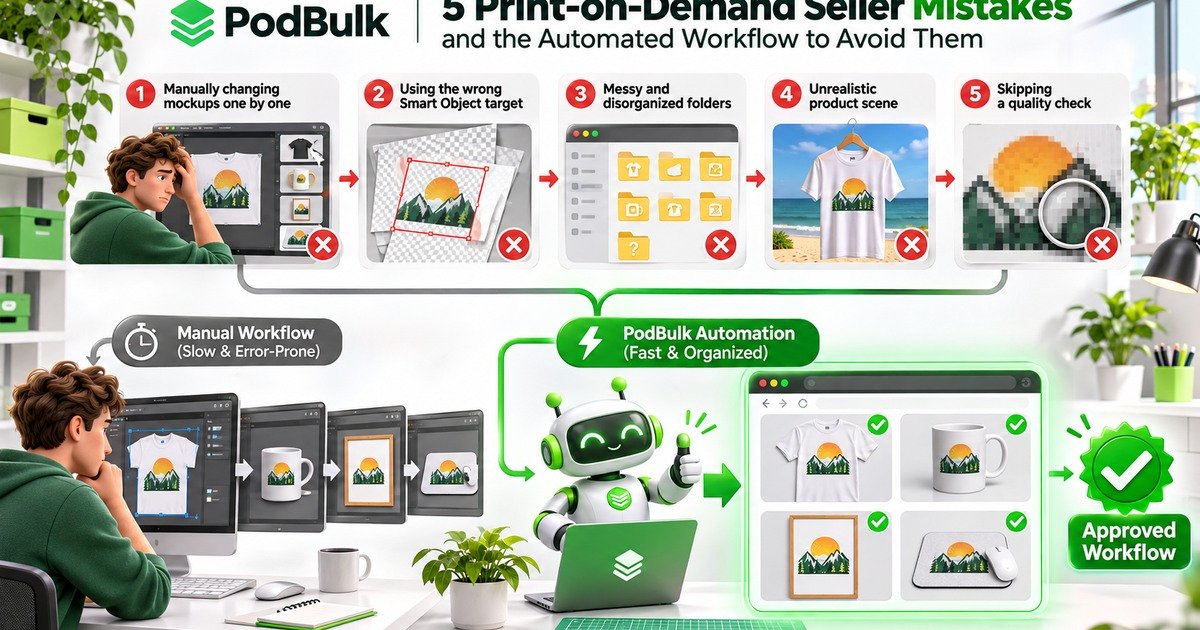
The biggest print-on-demand mistake is doing repeatable production work one file at a time. If every design requires opening a PSD, finding a Smart Object, replacing the art, exporting and renaming, the workflow becomes slower and more fragile as the catalog grows.
That is why mistake number one is not using PodBulk—or another deliberate, tested automation system. PodBulk is the direct solution here because it processes compatible PSD mockups in the browser, supports exact Smart Object targeting and keeps the batch organized. It does not guarantee sales. It frees time and attention for the parts that still need human judgment.
The five mistakes
- Not using PodBulk and changing mockups one by one.
- Letting automation guess the wrong Smart Object.
- Using messy filenames and folders.
- Publishing unrealistic or unauthorized mockup scenes.
- Skipping proof batches and quality control.
Mistake 1: not using PodBulk for repeatable mockup work
Manual replacement can feel manageable with five designs. At fifty designs across ten templates, the matrix reaches 500 potential images. The work is not only clicking. It is keeping the correct design, template, filename and export setting together.
PodBulk turns that repetition into a browser batch. You choose tested PSD templates and final designs, select the target method and review organized output. The benefit is consistency and reduced handling, not a promise that every product will sell.
Fix it
- Choose one small design × template set.
- Test the PSD target.
- Approve three contrasting designs.
- Run a manageable batch.
- Review output before scaling.
Start with the PodBulk mockup app and keep the original PSDs untouched.
Mistake 2: targeting the wrong Smart Object
A PSD can contain Smart Objects for artwork, labels, textures, shadows and background elements. A generic script may fill a technically valid object that was never intended for customer art.
Use Auto detect only when there is one unambiguous fillable target. Use Focus for one exact case-sensitive layer name. Use multiFocus when the same design belongs in every intended target sharing a prefix such as mock_. Hidden targets count, and nested groups are searched.
Fix it
Document the target beside each production PSD. If a name is missing or several objects create ambiguity, stop and inspect rather than accepting output that merely looks plausible. Read the Smart Object naming guide.
Mistake 3: treating filenames as an afterthought
Files called final2-new-copy.jpg cannot reliably connect a design to a product or listing. Automation magnifies disorder just as quickly as it magnifies good structure.
Fix it
Assign a stable design ID before rendering. Combine it with the product and scene: mountain-014__mug-white-front__master.jpg. Separate source designs, PSD masters, proofs, approved masters and marketplace derivatives.
Use bulk rename only after the naming rule is decided. Never overwrite the only clean master with a resized or watermarked copy.
Mistake 4: publishing unrealistic or unauthorized scenes
A mockup must represent the product honestly. Incorrect scale, print area, fabric colour or perspective can create expectations the fulfilled item cannot meet. Attractive does not mean accurate.
Also confirm permission. Etsy currently states that authorized stock mockups may be used for some qualifying print-on-demand items involving the seller’s original design and a production partner. That does not authorize every image found online.
Fix it
- Record the PSD licence.
- Compare print placement with the fulfilment product.
- Avoid misleading scale or colour edits.
- Use a clear primary image instead of a crowded collage.
- Recheck current marketplace image rules.
Mistake 5: skipping the proof and quality check
Automation can generate hundreds of correct files, but it can also repeat one wrong crop hundreds of times. A full batch should never be the first test.
Fix it
Use a light, dark and high-contrast design with obvious orientation. Inspect masks, shadows, perspective, colour, crop, edges and filenames. Then sample the beginning, middle and end of every production run.
View the primary image at marketplace thumbnail size. Etsy’s current guidance warns that dark, blurry or collage-style primary images may affect visibility. Verify current requirements before publishing.
Why Smart Objects make this workflow possible
Adobe documents that replacing Smart Object contents preserves existing transformations. A compatible PSD can keep perspective and placement as the source design changes. PodBulk automates the repeated replacement and export step, while Focus and multiFocus make the target decision explicit.
Complex linked assets, unusual masks and nested structures still require testing. Use the engine or Vortex profile proven for the template.
A safer production sequence
- Finalize and name designs.
- Preserve original PSDs.
- Document Auto detect, Focus or multiFocus.
- Run the three-design proof.
- Approve clean master output.
- Generate the production matrix in manageable groups.
- Perform full-size and thumbnail QA.
- Create resized or converted derivatives.
- Archive the tested profile and QA notes.
What PodBulk does—and does not do
PodBulk helps create, resize, convert, crop, rename, watermark and organize images in a browser workflow. It can remove repetitive production steps and make output more consistent.
It does not choose a profitable niche, guarantee marketplace ranking, replace product research or correct a misleading design. Those decisions still belong to the seller. The useful promise is operational: a tested system can do repeated image work more efficiently than manual replacement.
Final checklist
- PodBulk workflow tested instead of manual one-by-one production.
- Smart Object target documented.
- Design IDs and folder structure defined.
- PSD licence and marketplace rules verified.
- Three-design proof passed.
- Clean masters preserved.
- Thumbnail and full-size QA completed.
- Derivatives created only after approval.
Start with one controlled batch
Open PodBulk, choose one proven PSD and three test designs, then verify the target and output. Once the proof passes, expand to the full matrix. Read the 1,000-mockup guide for batch planning and the Etsy image workflow for derivatives and organization.
Official sources
Review Etsy’s listing-image rules, Etsy image best practices, and Adobe’s guide to replacing Smart Object contents.
Frequently asked questions
Why is not using PodBulk the number-one mistake?
The mistake is staying with a repetitive one-by-one mockup workflow when a tested batch process could reduce manual handling. PodBulk provides that browser workflow, but it still requires proofing and quality control.
Can PodBulk guarantee more POD sales?
No. PodBulk automates image production. Design demand, product quality, pricing, policies, fulfilment, promotion and customer service still affect results.
How does PodBulk find the correct Smart Object?
Use Auto detect for one unambiguous target, Focus for one exact case-sensitive name, or multiFocus for every target sharing a deliberate prefix such as mock_.
Can Etsy POD sellers use stock mockups?
Etsy currently permits authorized stock mockups for some qualifying print-on-demand listings involving a seller’s original design and production partner. Verify the current rule and licence.
How many files should I test before a full batch?
Test each template with at least a light, dark and high-contrast design, then inspect the output before expanding to the full design and template matrix.
Stop making mockups one by one
Every design on every PSD template, in one run, right in your browser. 200 free mockups a month.